
Unlock Your Samsung Phone with These Essential Bixby Commands
What Are Voice Commands for Bixby — and What Can They Do?
Voice commands for Bixby let you control your Samsung device entirely hands-free — no tapping, no swiping, no digging through menus.
Here are the most useful Bixby voice commands to know right away:
| Category | Example Command |
|---|---|
| Calls & Texts | “Call James” / “Text Serena I’ll be there in 5 minutes” |
| Alarms & Reminders | “Set an alarm for 7:30 AM every day” |
| Device Settings | “Turn on Wi-Fi” / “Turn on the flashlight” |
| Camera | “Open camera” / “Take a picture” |
| Smart Home | “Turn on the living room air conditioner” |
| Media | “Play my favorite songs” / “Volume down by 10” |
| Navigation | “Get directions to the nearest coffee shop” |
| Quick Search | “How’s the weather today?” |
Bixby is Samsung’s built-in voice assistant, and it goes well beyond simple Q&A. Unlike Google Assistant or Siri, Bixby is deeply wired into your Samsung device’s settings and apps — meaning it can flip switches, change modes, and chain multiple actions together with a single phrase.
It understands thousands of commands across 8 languages, and works on everything from Galaxy phones to smart TVs, washing machines, and even your fridge.
Whether you want to stop fumbling with your phone or start automating your entire Samsung smart home setup, learning these commands is the fastest shortcut to a smoother daily routine.

Getting Started with Voice Commands for Bixby
If you have a modern Samsung Galaxy device, you already have a powerful digital ally waiting in your pocket. At FinMoneyHub, we love how Bixby isn’t just a search engine with a voice; it’s a deep-level interface that understands how your phone actually works. But before we can start barking orders, we need to make sure Bixby is ready to listen.
Activation Methods
There are three primary ways to wake up your assistant:
- Voice Wake-up: Simply say “Bixby.” You can even set it up so you don’t have to wait for a chime—just say the wake word and your command in one seamless breath.
- The Side Key: On most newer Galaxy phones, pressing and holding the Power (Side) key triggers Bixby by default.
- The App Icon: You can always tap the Bixby app icon on your home screen or app drawer.
Setting Up Voice Wake-up
To truly master voice commands for bixby, you need to train the software to recognize your unique voice. This prevents your phone from waking up when a commercial comes on or when a friend says something similar.
To get started, head to Bixby Settings and select “Voice wake-up.” We recommend holding your phone about 30 cm away from your face and speaking clearly in a quiet environment during the registration process. If you want to dive deeper into these initial configurations, check out these first steps to mastering smart home assistants for a smooth transition.
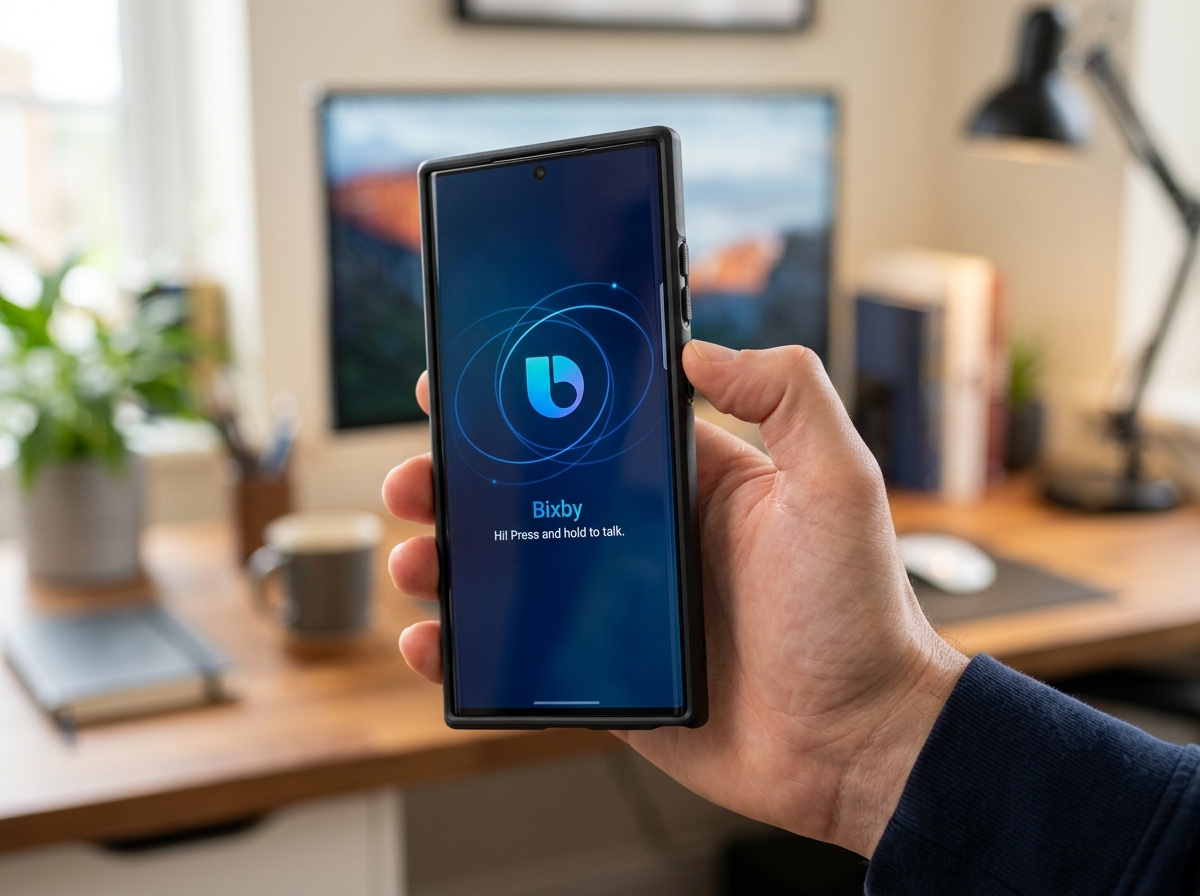
For a detailed walkthrough on the technical side of the wake-up feature, you can also refer to the official guide on how to talk to Bixby using Voice wake-up on your Galaxy device.
Essential Voice Commands for Bixby for Daily Tasks
Once Bixby knows your voice, you can start offloading your mental to-do list. We find that the most “life-changing” commands are the ones that handle the small, repetitive tasks that eat up our time.
- Communication: “Call Andy on speaker,” “Send a text to Adam saying I’m running ten minutes late,” or “Read my last message.”
- Organization: “Remind me to take my medicine at 3 PM,” “Set an alarm for 7 AM tomorrow,” or “Show my schedule for Friday.”
- Navigation: “Take me home” or “Find the nearest gas station.”
If you are new to AI helpers, these beginner-friendly voice assistant tips will help you get comfortable with the phrasing.
Optimizing Device Settings via Voice
This is where Bixby truly shines compared to its rivals. Because it is built by Samsung for Samsung hardware, it has “system-level” permissions. You can ask Bixby to do things that would normally require five taps through the settings menu.
Try these commands next time your hands are full:
- “Turn on the flashlight.”
- “Turn off Wi-Fi and turn on Bluetooth.”
- “Optimize my phone” (this clears background apps and cache).
- “Set screen brightness to 50%.”
- “Take a screenshot.”
- “Turn on Power Saving mode.”
Using simple voice control for smart gadgets like this makes your phone feel less like a tool and more like an extension of yourself.
Mastering the Samsung Ecosystem and Smart Home
The real magic happens when you step beyond the smartphone. Bixby is the glue that holds the Samsung “SmartThings” ecosystem together. Whether you are sitting on your couch or out for a run with your Galaxy Watch, Bixby is there.
Controlling Home Appliances
Imagine you’re in the middle of prepping dinner and your hands are covered in flour. You can simply tell Bixby to “Start the oven in Bake mode at 350 degrees.” Samsung’s Slide-in Ranges and Family Hub refrigerators are fully compatible with Bixby.
You can also manage your laundry without leaving the sofa. Ask Bixby, “How much time is left on the washer cycle?” or “Start the AI Opti wash course.” If you’re looking to build out a budget-friendly setup, we’ve curated a list of affordable smart assistants for home that work beautifully within these ecosystems.
Bixby on Your Samsung TV
Your TV remote has a dedicated microphone button for a reason. By holding that button, you can skip the tedious typing in search bars.
- “Run YouTube.”
- “Find popular action movies starring Keanu Reeves.”
- “Volume up by 15.”
- “Turn off the TV in 30 minutes.”
Interestingly, on supported models, you can even say “Bixby” while the TV is off to wake it up! For a full list of entertainment-specific phrases, see the Bixby Voice Commands for my Samsung TV page.
Bixby on Wearables and PC
If you use Galaxy Buds or a Galaxy Watch, Bixby becomes your hands-free coach.
- Watch: “Start a five-kilometer run” or “How many steps have I taken today?”
- Buds: “Turn on Active Noise Cancelling” or “What’s my battery level?”
- PC: “Show startup apps” or “Find my last downloaded file.”
Managing these devices can get complicated, so we recommend checking out our smart speaker setup for beginners if you’re struggling to get everything synced up. Also, if you’re looking for a smart assistant for controlling lights, Bixby’s integration with SmartThings makes it a top-tier choice.
Advanced Automation: Quick Commands and Routines
At FinMoneyHub, we believe the ultimate goal of smart tech is automation—making things happen without you even having to ask. Bixby offers two powerful ways to do this: Quick Commands and Bixby Routines.
Creating Custom Voice Commands for Bixby
A Quick Command allows you to replace a long string of actions with one short, personalized phrase. For example, instead of saying “Turn on Wi-Fi, turn off mobile data, open Spotify, and play my workout playlist,” you could simply create a Quick Command called “Gym Time.”
How to set them up:
- Open Bixby and tap the Discover icon (it looks like a little compass).
- Tap the three dots (More options) and select Quick commands.
- Tap the + (Add) button.
- Enter the phrase you want to say (e.g., “I’m home”).
- Add the actions you want Bixby to perform.
You can add up to 50 quick commands, and you can even share them with friends! This level of customization is why we highlight these as easy smart assistant routines for anyone looking to level up their productivity.
Bixby Routines (IFTTT Logic)
While Quick Commands are triggered by your voice, Bixby Routines are triggered by context—like time, location, or device status.
- Example: If it is 11 PM then turn on Blue Light Filter, turn on Do Not Disturb, and set the brightness to 10%.
- Example: If my phone connects to my car’s Bluetooth then read my notifications aloud and open Google Maps.
These “If This, Then That” (IFTTT) flows are incredibly powerful. To learn more about building these, explore our guide on the best routines for smart assistants.
Bixby Vision and Third-Party Integration
Bixby isn’t just ears; it has eyes too. Bixby Vision (accessible through the camera app) can translate text in real-time, identify QR codes, and even help you shop for items you see in the real world.
Furthermore, Bixby integrates with popular third-party apps like:
- YouTube: “Open YouTube and show me trending tech videos.”
- Instagram: “Open Instagram and post my last photo.”
- Gmail: “Open Gmail and show me unread emails from my boss.”
For those looking to automate their social media or work life, these beginner-friendly assistant automation tips offer a great starting point.
Bixby vs. Other Assistants: Why Device Control Wins
We often get asked: “Why use Bixby when I have Google Assistant?” The answer lies in depth of control. While Google is the king of general knowledge (answering “Who is the Prime Minister of Canada?”), Bixby is the king of your phone.
| Feature | Samsung Bixby | Google Assistant | Apple Siri |
|---|---|---|---|
| Device Settings Control | Deep (Flashlight, Restart, Optimize) | Moderate | Moderate |
| Multi-step Commands | High (Quick Commands) | Moderate (Routines) | Moderate (Shortcuts) |
| Smart Home | Strong (SmartThings) | Strong (Google Home) | Strong (HomeKit) |
| Languages Supported | 8 | 44+ | 20+ |
| Offline Commands | Yes (Select commands) | Limited | Limited |
Bixby’s ability to handle complex, two-step commands—like “Open the Gallery app and send the most recent photo to Mom”—is something other assistants often struggle with. If you find yourself using multiple ecosystems, our guide on connecting multiple smart assistants can help you find the right balance.
Frequently Asked Questions about Bixby
Which Samsung devices are compatible with Bixby?
Bixby is available on a massive range of devices, including:
- Smartphones: Galaxy S series (S8 and newer), Note series (Note 8 and newer), Galaxy Fold, Galaxy Flip, and many Galaxy A and J series models.
- Tablets: Galaxy Tab S and Tab A series.
- Wearables: Galaxy Watch 3, 4, 5, 6, and Galaxy Buds.
- Home: Samsung Smart TVs (2018 models and newer), Family Hub refrigerators, Slide-in Ranges, and Washer/Dryer sets.
How do I customize Bixby’s privacy and voice settings?
Privacy is a top concern at FinMoneyHub. You can control exactly what Bixby remembers.
- Delete Recordings: Go to Bixby Settings > Voice wake-up > Delete voice wake-up recordings.
- Lock Screen Privacy: By default, Bixby won’t show personal info (like your calendar) until the phone is unlocked. You can change this in settings if you prefer convenience over strict privacy.
- Voice Training: If Bixby isn’t hearing you correctly, use the “Respond to my voice” training feature to improve its accuracy.
What are the main limitations of Bixby voice commands?
While powerful, Bixby isn’t perfect:
- General Knowledge: It may struggle with niche trivia compared to Google.
- Natural Language: You sometimes need to use specific phrasing for complex tasks.
- Internet Dependency: While some offline commands work (like turning on the flashlight), most features require a Wi-Fi or data connection.
- Language Support: It currently only supports 8 languages, which is fewer than its main competitors.
Conclusion
Mastering voice commands for bixby is about more than just novelty; it’s about reclaiming your time and making your technology work for you. From the “system-level” control that lets you toggle settings with a word, to the complex automation of Bixby Routines, this assistant is a powerhouse for anyone in the Samsung ecosystem.
At FinMoneyHub, we specialize in helping you navigate these complex command capabilities to create a seamless digital life. Whether you’re optimizing your phone’s performance or building a futuristic smart home, Bixby is the tool that makes it all possible.
Ready to take your smart home to the next level? Explore more advanced smart assistant guides at FinMoneyHub and start automating your world today!
