
Reset Your Smart Plug and Start Fresh Today
When Your Smart Plug Stops Responding, a Reset Can Fix It Fast
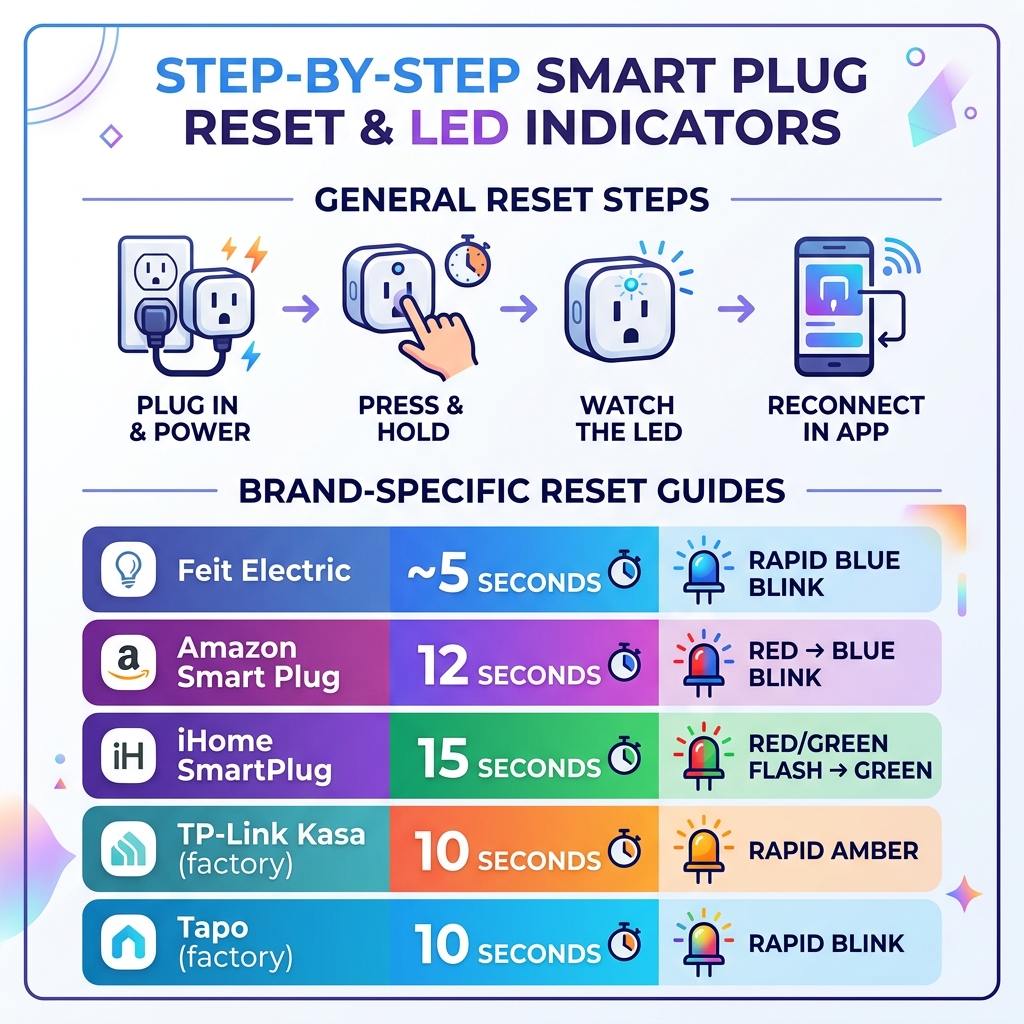
How to reset a smart plug depends on your brand, but most follow these basic steps:
- Plug it in and make sure it has power
- Press and hold the reset or power button (usually 5-15 seconds depending on brand)
- Watch the LED – a blinking or color-changing light confirms the reset
- Reconnect via your smart home app (Alexa, Kasa, Tapo, etc.)
| Brand | Hold Time | LED Signal |
|---|---|---|
| Feit Electric | ~5 seconds | Rapid blue blink |
| Amazon Smart Plug | 12 seconds | Red → blue blink |
| iHome SmartPlug | 15 seconds | Red/Green flash → green |
| TP-Link Kasa (factory) | 10 seconds | Rapid amber |
| Tapo (factory) | 10 seconds | Rapid blink |
Smart plugs are great – until they aren’t.
Maybe your plug suddenly went offline. Maybe Alexa stopped finding it. Maybe you moved to a new home and your old Wi-Fi setup no longer works. These are very common problems, and they happen to even the most tech-savvy smart home users.
The good news? A reset almost always fixes it. Most smart plug issues come down to a lost Wi-Fi connection, a bad configuration, or a glitch in the firmware. A simple reset clears all of that and lets you start fresh.
The tricky part is that every brand does it differently. Hold times, LED colors, and button locations vary widely. Using the wrong steps can leave you more confused than when you started.
This guide covers the exact reset steps for the most popular smart plug brands – with the LED indicators and hold times you actually need.
Understanding the Difference: Soft Reset vs. Factory Reset
Before we dive into the specific buttons you need to mash, we need to talk about the two main ways to “reset” a device. Not all resets are created equal! If you use the wrong one, you might end up deleting your carefully crafted schedules for no reason.
The Soft Reset
Think of a soft reset like a quick afternoon nap for your smart plug. It refreshes the connection without erasing your memory. When you perform a soft reset, the device typically drops its current Wi-Fi connection and enters “setup mode.”
The magic here is that your custom names, Smart Home Scheduling For Beginners settings, and automations usually stay intact within the app. You would use this if you just changed your Wi-Fi password or moved the plug to a different room.
The Factory Reset
A factory reset is the “nuclear option.” It wipes the device completely clean, returning it to the exact state it was in when it left the box. This erases all Wi-Fi credentials, schedules, and links to your Smart Home Automation Apps For Beginners.
We recommend a factory reset if:
- You are giving the plug to someone else.
- The device is completely unresponsive to the app.
- A soft reset didn’t fix your connectivity issues.
If you’re new to this world, our Beginner Guide To Smart Plugs can help you understand how these devices interact with your home network before you start wiping settings.

How to Reset Smart Plug Brands: Step-by-Step Instructions
Every manufacturer has its own “secret handshake” to trigger a reset. Usually, this involves holding down the physical power button for a specific number of seconds. If you hold it too briefly, nothing happens; hold it too long, and you might skip the mode you were looking for.
| Brand | Soft Reset (Hold Time) | Factory Reset (Hold Time) | Primary LED Indicator |
|---|---|---|---|
| Amazon | N/A (Restart first) | 12 Seconds | Red LED, then Blue blink |
| TP-Link Kasa | 5 Seconds | 10 Seconds | Amber/Green or Amber/Blue |
| Tapo | 5 Seconds | 10 Seconds | Rapid Blinking |
| iHome | N/A | 15 Seconds | Red/Green flash |
| Feit Electric | N/A | 5 Seconds | Rapid Blue blink |
| CE Smart | N/A | 10 Seconds | Rapid Blue blink |
For more detailed technical documentation, you can always refer to the How to Reset a Kasa Smart Plug or Smart Switch | TP-Link support page.
Resetting Amazon and iHome: How to Reset Smart Plug Hardware
Amazon Smart Plug The Amazon Smart Plug is designed to work seamlessly with Alexa, but when it glitches, it can be stubborn. Before you perform a full reset, Amazon suggests a “power cycle”—simply unplug it for 10 seconds and plug it back in. If that doesn’t work:
- Press and hold the button on the side of the device for 12 seconds.
- Release the button when you see the red LED light.
- A blue LED will start blinking once the reset is complete.
- You must then re-register the device in the Alexa app. For help with this, see our guide on Easy Setup For Alexa At Home.
iHome SmartPlug iHome devices have a very specific light sequence.
- Plug the device into a working outlet.
- The LED will likely flash green.
- Press and hold the power button (usually on the top right) for 15 seconds.
- Watch the lights: It will flash Red/Green, turn off briefly, and then give a quick Green flash.
- Release the button only after that final green flash.
For more official details on the Amazon process, check out Reset Your Amazon Smart Plug.
TP-Link Kasa and Tapo: How to Reset Smart Plug Settings via App
TP-Link offers two distinct brands: Kasa and Tapo. While they are siblings, their reset processes have slight variations.
Kasa Smart Plugs Kasa is famous for offering both reset types.
- Soft Reset (5 seconds): Hold the control button until the LED blinks amber and green. This allows you to change Wi-Fi settings without losing your app configurations.
- Factory Reset (10 seconds): Hold until the LED blinks amber rapidly. This wipes everything.
- Note for Power Strips: On models like the HS300, the individual control buttons serve as the reset buttons for the whole unit.
Tapo Smart Plugs Tapo devices follow a similar logic but are managed through the Tapo app.
- Manual Reset: Power on the plug and hold the button for 10 seconds.
- App Reset: You can also reset the device by opening the Tapo app, long-pressing the device card, and tapping the “minus” icon or “Remove.” The plug must be online for the app-based reset to work.
Learn more about the differences at How to factory reset the Tapo/Kasa smart plug | Tapo.
Feit Electric and CE Smart Home Procedures
Feit Electric Feit Electric plugs are straightforward but require precision.
- Plug it in and hold the power button for 5 seconds.
- The indicator LED will start blinking blue rapidly. This is your signal that the device is in pairing mode and ready for a fresh setup.
CE Smart Home CE Smart devices offer a dual-pathway reset.
- App Method: Open the CE Smart App, select your device, tap the edit icon, and select “Restore Factory Defaults.”
- Manual Method: If the app isn’t working, press the Wi-Fi button once (red LED), press again (blue LED), and then hold for 10 seconds until the blue LED flashes rapidly.
If you are struggling with these steps, the How to Factory Reset the Smart Plug : CE Smart Home guide provides additional troubleshooting for power issues.
Troubleshooting Connectivity: Why 2.4 GHz Wi-Fi Matters
You’ve performed the reset, the lights are blinking perfectly, but the app still can’t find your plug. What gives?
Nine times out of ten, the culprit is your Wi-Fi frequency. Most smart plugs—including those from Smart Life, Feit, and Amazon—only support 2.4 GHz Wi-Fi networks. They cannot “see” or connect to 5 GHz networks.
Why 2.4 GHz?
- Range: 2.4 GHz signals travel through walls much better than 5 GHz. Since smart plugs are often tucked behind couches or in garages, they need that extra reach.
- Cost: The chips required for 2.4 GHz are smaller and more affordable, keeping smart plugs budget-friendly.
Pro Tip: If your router uses “Smart Connect” (one Wi-Fi name for both 2.4 and 5 GHz), your phone might be sitting on the 5 GHz band, preventing it from “talking” to the plug during setup. We suggest temporarily disabling the 5 GHz band in your router settings or moving further away from the router until your phone switches to 2.4 GHz before you try to how to reset smart plug and reconnect.
For more on keeping your network safe while troubleshooting, read our Essential Tips For Securing Your Smart Home Devices. If you are using a non-branded plug, you might find help at Reset Your Third-Party Smart Plug.
What to Do When Your Smart Plug Won’t Reset
Sometimes, you hold the button for a minute, and… nothing. No lights, no clicks, just a plastic brick in your outlet. Here is our checklist for a non-responsive device:
- Check the Outlet: It sounds silly, but try a different outlet. If the plug isn’t getting consistent power, it can’t reset.
- The “One Minute” Trick: Some generic plugs (like the LSPA7) require a much longer hold time than the manual suggests. Try holding the button for a full 60 seconds.
- Look for a Faint Light: If you see a very faint, flickering blue light, the internal capacitor or Wi-Fi chip may have failed. This is often a sign of hardware death rather than a software glitch.
- Power Cycle: Unplug the device, wait 30 seconds, and plug it back in while holding the reset button. This can sometimes force a firmware override.
If your plug is truly dead, it might be time to upgrade to something more robust. Check out our recommendations for Beginner Friendly Smart Power Strips or explore Simple Voice Control For Smart Gadgets to find a replacement that fits your ecosystem.
Frequently Asked Questions about Smart Plug Resets
Why is my smart plug blinking red?
On an Amazon Smart Plug, a blinking red light usually means the device has lost its connection or is having a hardware error. It is a “cry for help” that typically requires a factory reset (the 12-second hold) to resolve.
How do I identify my smart plug model for the correct reset?
If you’ve lost the box, look for a laser-etched label on the back or side of the plug. It will list a Model Number (e.g., HS105 or Tapo P100). You can search this number on the manufacturer’s website to find the exact button duration.
Can I reset my smart plug without the original app?
Yes! Almost every smart plug has a physical button that allows for a manual factory reset. Once the LED starts blinking rapidly, the device is “open” and can be paired to a compatible app (like Smart Life or Tuya) even if you no longer have the original manufacturer’s app.
Conclusion
At FinMoneyHub, we know that technology is supposed to make your life easier, not give you a headache. Mastering how to reset smart plug hardware is the first step toward a more reliable automated home. Once your devices are back online, you can get back to creating smart assistant routines that handle complex commands with ease.
Resetting your devices isn’t just about fixing bugs; it’s also a great time to audit your energy usage. Check out our guide on Easy Energy Saving Smart Devices to see how your newly reset plugs can help lower your utility bills.
For more expert advice on managing your connected home, explore more energy-saving tips at FinMoneyHub. Whether you’re troubleshooting a single plug or building a whole-home ecosystem, we’re here to help you start fresh today!
