
One Simple Way to Smart Plug Setup
Smart Plug Setup: What You Need to Know Before You Start
Smart plug setup is simpler than most people expect — and you can usually get a plug running in under five minutes.
Here’s the quick version:
- Plug the smart plug into a wall outlet
- Download the brand’s companion app (Kasa, Wyze, Alexa, etc.)
- Create or log into your account
- Tap “Add Device” in the app and follow the on-screen steps
- Connect the plug to your 2.4GHz Wi-Fi network
- Name your device and start controlling it remotely
Key requirement: Almost all smart plugs need a 2.4GHz Wi-Fi network — not 5GHz. Make sure you know which band your phone is connected to before you start.
If you’ve ever left the house and wondered whether you forgot to turn something off, smart plugs solve that problem instantly. They sit between your wall outlet and any regular appliance, giving you remote on/off control, scheduling, and even energy monitoring — all from your phone.
The catch? Setup can trip people up. Wrong Wi-Fi band, a missed permission, a blinking LED that means nothing obvious — these small friction points stop a lot of people cold.
This guide walks you through everything: general setup steps, brand-specific differences, LED light meanings, troubleshooting, and voice assistant integration.

Essential Prerequisites for a Successful Smart Plug Setup
Before we dive into the physical plugging and clicking, we need to ensure our environment is ready. Think of this as prepping the kitchen before cooking a five-star meal. If the ingredients aren’t there, the recipe won’t work.
First and foremost, let’s talk about the 2.4GHz Wi-Fi requirement. This is the single most common reason a smart plug setup fails. Most modern routers are “dual-band,” meaning they broadcast both 2.4GHz and 5GHz signals. While 5GHz is faster for streaming movies, 2.4GHz has a much better range and penetrates walls more effectively. Because smart plugs only send tiny bits of data (like “turn on” or “turn off”), they prioritize that range over raw speed. If your smartphone is currently on the 5GHz band, the setup app might not be able to “hand off” the Wi-Fi credentials to the plug.
Next, check your smartphone’s compatibility. For a smooth experience, you generally need:
- iOS 11 or later for Apple users.
- Android 5.0 or later for Android users.
We also recommend checking out our Beginner guide to smart plugs to understand the different types of plugs available. Once your phone is ready, head to the App Store or Google Play Store to download the specific app for your brand. Whether it’s the Kasa Smart app, the Wyze app, or the Amazon Alexa app, having the latest version is crucial for security and bug fixes.
Finally, consider the physical space. Your electrical outlets should be grounded (three-prong) and easily accessible. During the initial smart plug setup, try to keep the plug within 30 to 50 feet of your router to ensure a strong signal (ideally -70 dBm or stronger). If you are using a newer model from brands like Wyze or TP-Link, ensure your phone’s Bluetooth permissions are turned on; many modern plugs use Bluetooth to “find” the device before switching to Wi-Fi for the heavy lifting.
General Step-by-Step Instructions for Most Devices
While every brand has its own flair, the core process of a smart plug setup is remarkably consistent across the industry. We like to think of it as a universal language of home automation.
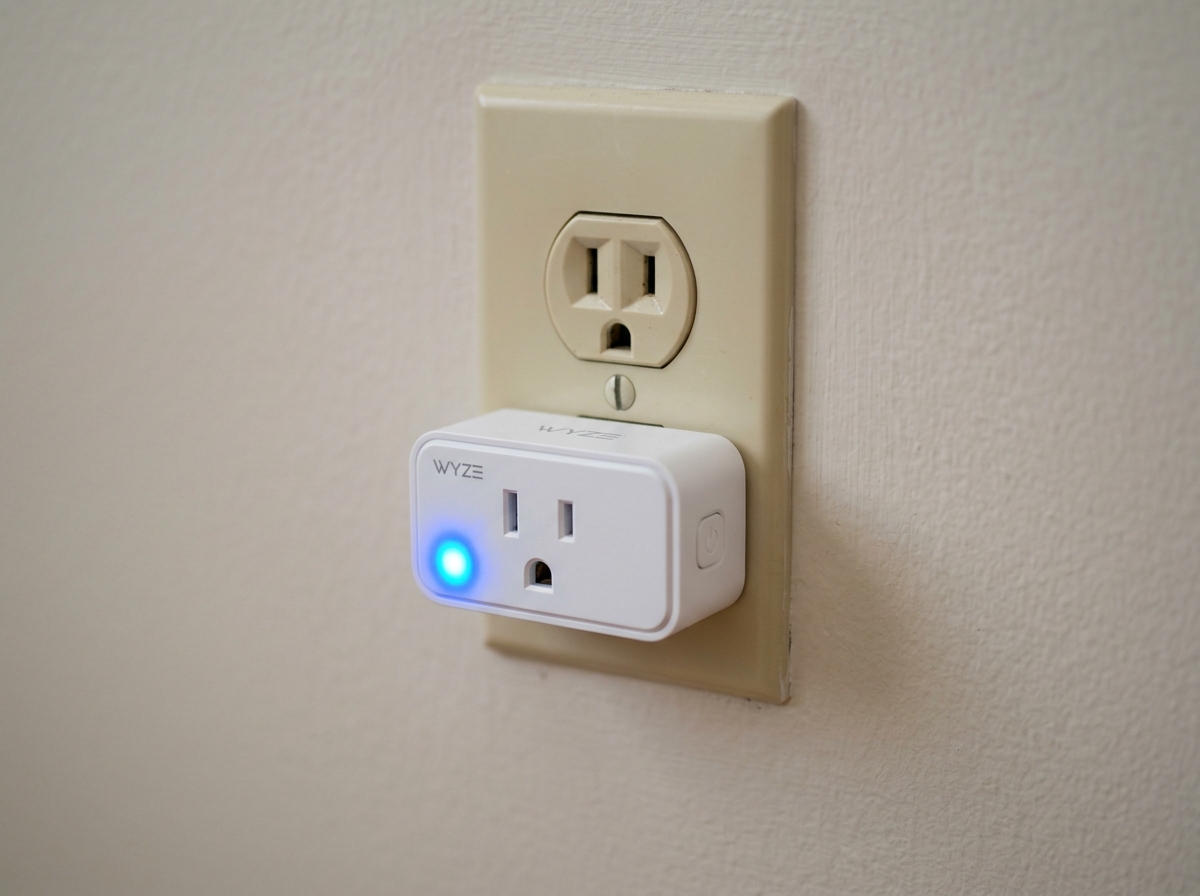
1. Physical Installation
Start by plugging your smart device into a standard 120V wall outlet. Most plugs will immediately show a light. If it doesn’t, look for a physical power button on the side or front and give it a quick press.
2. Enter Pairing Mode
For the app to find your plug, the device must be in “pairing mode” (sometimes called SoftAP mode). Usually, this is indicated by a blinking LED. If your plug isn’t blinking right out of the box, you’ll need to perform a manual reset. For most brands, this involves holding the power button for about 5 to 10 seconds.
3. Network Credential Entry
Once the app discovers the plug, it will ask you to select your home Wi-Fi network. This is where you enter your Wi-Fi password. Be careful here — passwords are case-sensitive, and a single typo will result in a “connection timed out” error.
4. Customizing Your Device
After the plug connects (which usually takes 30 to 60 seconds), the app will ask you to name it. We suggest using descriptive names like “Living Room Lamp” or “Bedroom Fan” rather than “Plug 1.” This makes voice control much easier later on. If you’re also looking into lighting, you might find our Beginner-friendly guide to installing smart bulbs at home helpful, as the naming logic is very similar.
Comparing Setup Methods
| Feature | Wi-Fi Only Setup | Bluetooth-Enabled Setup |
|---|---|---|
| Discovery Speed | Moderate (requires manual Wi-Fi switching) | Fast (automatic discovery) |
| Range during setup | Must be within Wi-Fi range | Must be within 5-10 feet of phone |
| Reliability | Good, but sensitive to 2.4/5GHz interference | Excellent for initial handshake |
| Common Brands | Older Kasa, generic Wi-Fi plugs | Wyze (2021+), Amazon, Philips Hue |
Navigating the App During Smart Plug Setup
The app is your command center. During the smart plug setup, you might encounter a few different ways to register the hardware.
QR Code Scanning: Brands like Philips Hue and many Matter-compatible devices use a QR code. You simply point your phone camera at the code (usually found on the side of the plug or in the manual), and the app handles the rest. If the code is missing or damaged, most apps offer a manual serial entry option.
Permissions: Don’t be alarmed when the app asks for “Local Network” permissions (especially on iOS 14+) or “Location Services.” These are necessary for the app to “see” the devices on your Wi-Fi and to identify the SSID of the network you are using. For a deeper dive into these tools, see our guide on Smart home automation apps for beginners.
Firmware Updates: Immediately after a successful setup, the app will likely prompt you for a firmware update. Do not skip this. Manufacturers release these updates to patch security vulnerabilities and improve connection stability. For instance, WeMo plugs often require an immediate update to function correctly with newer mesh routers.
Troubleshooting and LED Light Meanings
Even the best tech has its “off” days. If your smart plug setup isn’t going according to plan, the first thing to check is the LED light on the device. These lights are the plug’s only way of talking to you!
Common LED Patterns
- Flashing Amber and Blue (TP-Link Kasa): This means the plug is in “SoftAP” mode and is ready to be configured.
- Flashing Blue Rapidly: The plug is currently attempting to connect to your Wi-Fi network.
- Solid Blue: Success! The plug is connected and turned on.
- Solid Amber: The device is rebooting or has lost its network connection.
- Flashing Amber Rapidly: The device is undergoing a factory reset.
Solving Connection Timeouts
If you receive a connection error on your smartphone, it’s often a “handshake” issue.
- Distance: Move the plug closer to the router just for the setup phase. You can move it to its final destination once it’s configured.
- App Restart: Sometimes the app gets stuck in a loop. Force-close the app and try again.
- Phone Settings: For Android users (especially Samsung), your phone might try to “help” by switching back to mobile data because the smart plug’s temporary Wi-Fi signal doesn’t have internet access. If prompted, tell your phone to “stay connected” to the unsecured network.
Solving Connectivity Issues in Your Smart Plug Setup
If the basic steps don’t work, we need to look at the “brain” of your home: the router.
Band Steering: Some high-end routers use “Band Steering” to force devices onto the 5GHz band. This can confuse a smart plug. You may need to temporarily disable the 5GHz band in your router settings or create a dedicated “Guest Network” that only uses 2.4GHz for your smart home gadgets. This is a trick we often recommend in our 10 easy steps to install smart bulbs at home guide as well.
DHCP and MAC Filtering: If you have high security on your router, check if MAC address filtering is turned on. You’ll need to add the smart plug’s MAC address (usually found on the device label) to your router’s “allow” list. Additionally, increasing your DHCP lease time to 24 hours (1440 minutes) can prevent the plug from “dropping off” the network when its IP address expires.
When all else fails, a router reboot is the classic “turn it off and back on again” solution that fixes about 50% of discovery failures.
Advanced Customization and Voice Control Integration
Once the smart plug setup is complete, the real fun begins. You’ve moved past the “it works” stage and into the “it makes my life easier” stage.
Voice Assistant Linking
The most popular way to use a smart plug is through voice commands. Whether you use Alexa, Google Assistant, or Siri (HomeKit), the process is similar:
- Open your voice assistant app (e.g., Alexa App).
- Go to “Devices” and tap the “+” icon.
- Select “Add Device” and choose “Plug.”
- If you’ve already set up the plug in its own app (like Kasa), you will be prompted to “Link Account” or “Enable Skill.”
- Once linked, you can say, “Alexa, turn on the coffee maker.”
For more tips on this, check out our resource on Simple voice control for smart gadgets.
Scheduling and Timers
Why manually turn things on when your plug can do it for you? You can set Schedules based on specific times (e.g., “Turn on porch lights at 7 PM”) or based on Sunrise/Sunset times, which the app calculates using your location. Timers are great for devices like hair straighteners or space heaters that you want to ensure turn off after 30 minutes.
Away Mode and Security
Many brands, including TP-Link and Wyze, offer an “Away Mode.” This feature randomly turns your lights on and off during a set window of time (usually with a 15-30 minute variation). This simulates someone being home, providing an extra layer of security while you’re on vacation. You can find more ideas for these types of setups in our guide to Simple home automation routines.
Energy Monitoring
If you bought a plug with energy monitoring (like the Kasa HS110), you can see exactly how much electricity an appliance is using in real-time. We’ve used this ourselves to discover that old cable boxes can draw up to 35 watts even when they’re “off,” which can add up to $3 a month on your bill! By setting a schedule to kill the power at night, the plug pays for itself in a few months.
Frequently Asked Questions about Smart Plugs
Do smart plugs require a dedicated hub?
In the early days of smart homes, almost everything needed a “bridge” or “hub” to talk to your router. Today, most smart plugs are hub-less, meaning they connect directly to your Wi-Fi.
However, there are exceptions. Philips Hue plugs can work via Bluetooth, but to get the full range of features, they prefer the Hue Bridge. Plugs using Zigbee or Z-Wave protocols also require a hub (like a Samsung SmartThings hub). The industry is currently moving toward the Matter standard, which aims to make all devices work together regardless of the brand. If you have multiple devices in one spot, you might consider Beginner-friendly smart power strips, which often provide several smart outlets in one Wi-Fi connection.
What appliances are safe to use with smart plugs?
This is a critical safety question. Most smart plugs are rated for 10 to 15 amps (roughly 1200 to 1800 watts).
- Safe: Lamps, fans, coffee makers, humidifiers, and chargers.
- Use Caution: Space heaters and window AC units. These draw a lot of power. If you use a smart plug for a heater, ensure the plug is rated for at least 1500W and never leave it unattended.
- Avoid: Large appliances like refrigerators or washing machines. The “startup surge” of these motors can damage the internal relay of a standard smart plug.
For more on managing your appliances, see Easy smart appliance automation.
Can I control my smart plug without an internet connection?
If your internet goes down, can you still turn off your lamp? It depends on the brand.
- Local Network Control: Brands like TP-Link Kasa allow you to control the plug via the app as long as your phone and the plug are on the same Wi-Fi network, even if the “outside” internet is dead.
- Bluetooth Fallback: Some Wyze and Hue plugs can switch to Bluetooth control if Wi-Fi fails.
- Offline Schedules: Most plugs store their schedules locally. If the internet goes out at 6 PM, your 7 PM “lights on” schedule will usually still fire because the “brain” is inside the plug.
Conclusion
At FinMoneyHub, we believe that technology should work for you, not the other way around. Mastering the smart plug setup is your first step into a larger world of home automation that saves you time, money, and energy. Whether you’re starting with a single lamp or automating your entire home office, the principles remain the same: stay on the 2.4GHz band, name your devices clearly, and don’t be afraid to experiment with routines.
Our mission is to provide you with the resources to handle even the most complex command capabilities for your digital devices. By integrating these simple gadgets, you’re not just buying a plug; you’re buying peace of mind.
Ready to expand your smart home further? Check out our Beginner guide to smart plugs for more inspiration on how to turn your “dumb” appliances into a genius ecosystem. Happy automating!
