
How to Rule Your World Using Only Voice Assistant Commands
What Are Voice Commands for Google Assistant (And Why They Change Everything)
Voice commands for Google Assistant let you control your phone, smart home, calendar, music, and more — completely hands-free.
Here are the most common commands to get started:
| Category | Example Command |
|---|---|
| Activation | “Hey Google” / “OK Google” |
| Alarms & Timers | “Set a timer for 15 minutes” |
| Communication | “Call Mom on speakerphone” |
| Navigation | “How’s traffic to work?” |
| Smart Home | “Turn off the living room lights” |
| Entertainment | “Play workout music on Spotify” |
| Quick Info | “What’s the weather today?” |
| Fun | “Tell me a joke” |
Think about how much time you spend tapping, swiping, and searching for things on your phone or smart speaker. Now imagine doing all of that without touching a single screen.
That’s the promise of Google Assistant voice commands — and it’s not just hype.
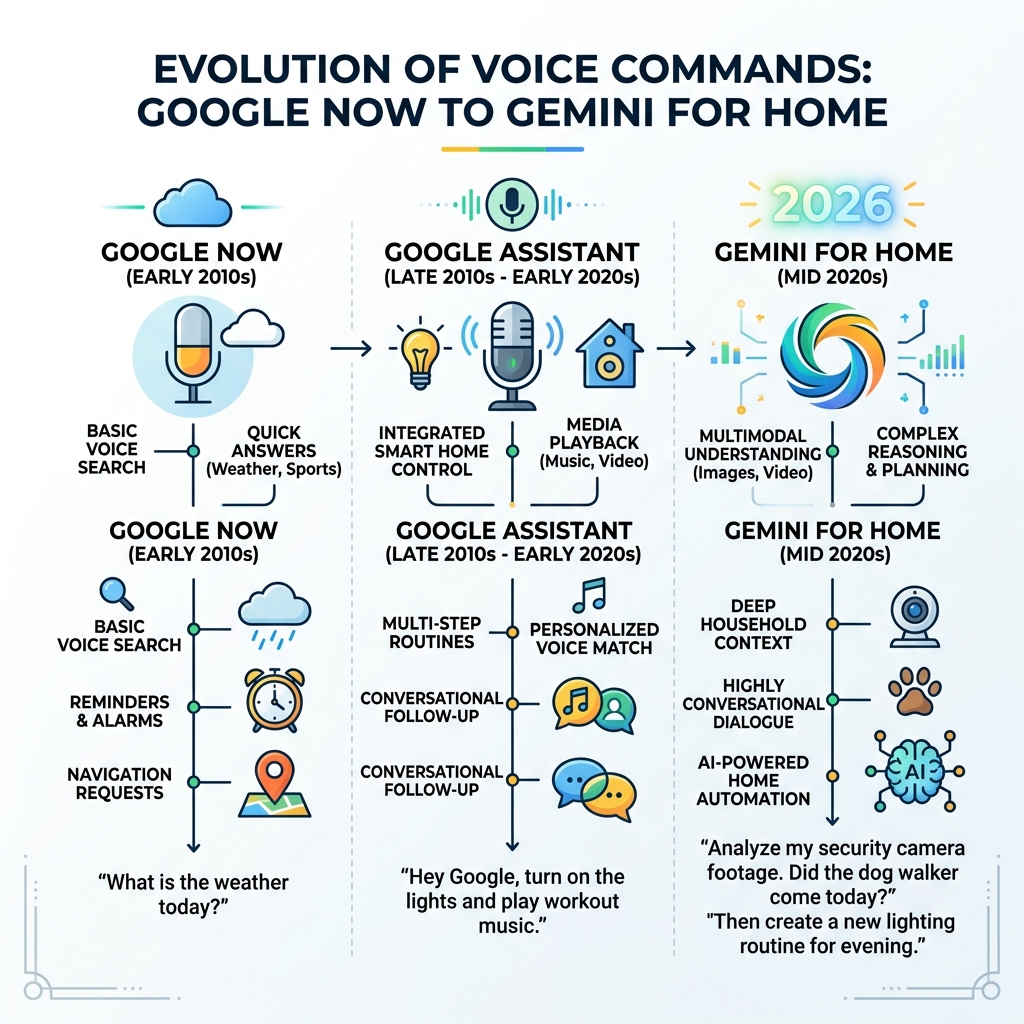
Google’s voice assistant has evolved from a basic search shortcut into a full-on life management tool. From setting reminders and sending texts to controlling your smart lights and analyzing security camera footage, the range of what you can do with just your voice is genuinely impressive.
And with Google now rolling out Gemini for Home to replace the original Google Assistant, the commands are getting smarter, more conversational, and more capable than ever.
Whether you’re cooking dinner, driving to work, or just don’t want to get off the couch — voice commands can handle it.
This guide covers over 60 essential Google Assistant voice commands across every major category, so you can stop fumbling with your phone and start actually running your world hands-free.
Setting Up Your Hands-Free Command Center
Before we can start issuing orders like a digital monarch, we need to make sure our “throne room” is properly configured. The magic starts with the wake words: “Hey Google” or “OK Google.” While some of us find “OK Google” a bit easier to enunciate clearly, both work equally well to grab your device’s attention.
To get the most out of your experience, you’ll want to set up Voice Match. This ensures the Assistant recognizes your specific voice, preventing your roommate or a noisy TV commercial from accidentally adding “100 lbs of glitter” to your shopping list. On Pixel devices, the integration is even deeper. You can Get started with the Google Assistant on Pixel to unlock hardware-specific features like “Squeeze to Talk” on older models or the power button gesture on newer ones.
We also recommend diving into your settings to enable lock screen access. This allows you to use voice commands for google assistant even when your phone is sitting across the room with the screen off. If you’re worried about data, don’t forget to download offline speech recognition packages in your settings; this makes the Assistant snappier and more reliable even when your Wi-Fi is acting like a grumpy teenager. For those just starting, our Simple Google Home Setup Tips can help you get through the initial hurdles without pulling your hair out.
Activating Your Assistant on Different Devices
Not every device listens the same way. While most of us use the classic wake word, there are other ways to summon help:
- Pixel Phones: On Pixel 6 and later, a long press of the power button does the trick. On older Pixels (2 through 4), you can actually give the sides of your phone a gentle squeeze.
- Smart Displays & Speakers: These are always listening for the wake word, but you can also tap the top of most Nest speakers to trigger the Assistant manually.
- Android Tablets: If your tablet is docked, it can act as a stationary smart display. Just make sure Voice Match is enabled so it knows it’s you.
If you’re feeling a bit overwhelmed by the technical side, check out these Beginner-Friendly Voice Assistant Tips to get comfortable with the basics.
Essential Voice Commands for Google Assistant for Daily Productivity

Once you’re set up, it’s time to put the Assistant to work. At FinMoneyHub, we believe in using tech to reclaim your time. Productivity is where voice commands for google assistant truly shine. Instead of digging through apps, you can manage your entire day with simple phrases.
One of our favorite features is the integration with Google Keep. You can say, “In my To-Do list, add an item to buy a new laptop charger,” and it will automatically sync to your notes.
Productivity Command Table: Assistant vs. Gemini
While standard commands are great for quick tasks, the new Gemini integration allows for much more complex “agentic” behavior.
| Task | Standard Assistant Command | Advanced Gemini Routine/Command |
|---|---|---|
| Alarms | “Set alarm for 7 AM.” | “Set a 7 AM alarm and tell me the weather when I wake up.” |
| Reminders | “Remind me to call the bank at 2 PM.” | “Remind me to call the bank when I get to the office.” (Location-based) |
| Calculations | “What is 20% of $45.50?” | “Calculate my share of the bill for 4 people with a 15% tip.” |
| Research | “Who wrote ‘The Great Gatsby’?” | “Explain the main themes of ‘The Great Gatsby’ to me like I’m five.” |
Communication Voice Commands for Google Assistant
In a world that’s always on the go, hands-free communication is a literal lifesaver—especially when driving. You can handle your entire inbox and contact list without taking your eyes off the road.
- Calling: “Call Mom on speakerphone” or “Call the nearest pharmacy.”
- Texting: “Text Sarah ‘I’m running 5 minutes late, see you soon.'”
- Messaging: “Read my unread texts” or “Send a Hangout message to the ‘Weekend Trip’ group.”
- Emailing: “Email Dad the flight details” (it can even pull info from your Gmail automatically).
Navigation and Local Information Commands
We’ve all been there: you’re halfway to an appointment and realize you have no idea what the traffic looks like. Instead of fumbling with a GPS, just ask.
- Traffic: “How’s the traffic to work?” or “What’s the commute to the airport?”
- Local Search: “Find the closest ATM” or “What time does the post office close?”
- Travel: “Is my flight on time?” or “How much does a round-trip flight to London cost?”
- Daily Logistics: “Will it rain tomorrow?” or “What’s the exchange rate for Euros?”
For more ways to streamline your tech life, take a look at our guide on Simple Voice Control for Smart Gadgets.
Controlling Your Smart Home and Entertainment Ecosystem
This is where you truly start to “rule your world.” By linking your devices in the Google Home app, you can Control your home devices by voice across your entire house.
At FinMoneyHub, we specialize in helping users build smart assistant routines that handle complex tasks with one phrase. For example, saying “Hey Google, goodnight” can simultaneously lock your doors, dim the lights, and set your thermostat to a cool 68 degrees. If you’re just getting started with lighting, our Introduction to Voice-Controlled Smart Lights is a great place to begin.
- Thermostats: “Set the temperature to 72 degrees” or “Turn up the heat in the hallway.”
- Security: “Show me the front door camera” (on a smart display) or “Is the back door locked?”
- Broadcasting: “Broadcast ‘Dinner is ready!'” to every speaker in the house—perfect for larger homes where shouting isn’t enough.
- Lighting: “Dim the kitchen lights to 30%” or “Turn the living room lights blue.” (Check out our Smart Assistant for Controlling Lights for more advanced tricks).
Entertainment and Media Voice Commands for Google Assistant
Whether you want a high-energy workout playlist or a relaxing podcast before bed, your voice is the ultimate remote control.
- Music: “Play Today’s Top Hits on Spotify” or “Play some 90s rock.”
- Song Identification: “What’s this song?” or “Who sings this?”
- News: “Tell me the latest news” or “Play the NPR news summary.”
- Ambient Sounds: “Play rain sounds” or “Help me relax.”
- Volume: “Set volume to 5” or “Mute the music.”
Smart TV and Chromecast Integration
Stop digging through the couch cushions for the remote. If you have a Chromecast or a TV with Google Assistant built-in, you can control your viewing experience entirely by voice.
- Power: “Turn on the TV” or “Turn off the living room Chromecast.”
- Playback: “Play ‘Stranger Things’ on Netflix” or “Watch funny cat videos on YouTube.”
- Control: “Skip this episode,” “Pause the movie,” or “Turn on subtitles.”
- Search: “Find action movies starring Tom Cruise.”
Advanced Intelligence: Gemini for Home and Accessibility
The transition from standard Google Assistant to Gemini for Home is a game-changer. Gemini isn’t just a list of commands; it’s a conversational AI. It can handle multi-step requests and provide nuanced explanations.
For instance, if your computer keeps crashing, you can ask, “Hey Google, why is my computer crashing all the time?” and Gemini can walk you through troubleshooting steps. It can even analyze your security camera footage. You can ask, “Did I get any packages yesterday?” and it will review your Nest camera history to give you a descriptive answer like, “Yes, a UPS driver left a box at 2:15 PM.”
For those looking to maximize their digital efficiency, we’ve compiled the Best Routines for Smart Assistants to help you leverage these AI features.
Voice Access for Hands-Free Device Control
For users with motor impairments—or anyone who simply has their hands full—Voice Access is a powerful accessibility tool. It allows you to Use Voice Access commands to control every single element on your screen.
- Grid Selection: Say “Show grid” to overlay a numbered grid on your screen, allowing you to tap specific spots by saying the number.
- Text Editing: “Type ‘I’ll be there soon'” or “Highlight ‘soon’ and replace it with ‘in ten minutes’.”
- Gestures: “Scroll down,” “Long-press the icon,” or “Swipe right.”
- Security: You can even enter your PIN using phonetic labels like “Alpha, Bravo, Charlie, Delta” to keep your code private while using voice.
If you’re new to these advanced features, our guide on the First Steps to Mastering Smart Home Assistants will walk you through the setup.
Fun Features and Easter Eggs
It’s not all work and no play! Google Assistant is famous for its sense of humor. While some older Easter eggs are being phased out as Gemini takes over, many fun commands remain:
- Jokes: “Tell me a joke” (get ready for some puns).
- Games: “Let’s play Lucky Trivia” or “Play Freeze Dance.”
- Randomness: “Roll a 20-sided die” or “Flip a coin.”
- Animal Sounds: “What sound does a cow make?” or “Make a whale noise.”
- Stories: “Tell me a bedtime story” or “Read me a poem.”
- Classic Easter Egg: “Do a barrel roll” (watch your phone screen spin!).
Troubleshooting and Pro Tips for Voice Mastery
Even the best assistants have “off” days. If your voice commands for google assistant aren’t working as expected, don’t panic. Here are a few pro tips to get back on track:
- Retrain Your Voice Model: If the Assistant stops responding to “Hey Google,” go into settings and retrain your voice model. Background noise during the initial setup can sometimes throw it off.
- Naming is Everything: Give your smart devices simple, unique names. “Kitchen Light 1” and “Kitchen Light 2” can be confusing. Try “Main Light” and “Sink Light” instead. Avoid using numbers or special characters.
- Sync Your Devices: If you’ve just added a new smart bulb but it isn’t responding, say “Hey Google, sync my devices.”
- Check Digital Wellbeing: If commands stop working at a certain time of night, check your “Downtime” or “Do Not Disturb” settings in the Digital Wellbeing menu.
- Microphone Sensitivity: In the Google Home app, you can actually adjust how sensitive your speakers are to the wake word. If it’s triggering too often (or not enough), give that slider a nudge.
Frequently Asked Questions about Google Assistant
How do I make Google Assistant recognize only my voice?
The key is Voice Match. By setting this up in the Google Home or Google app settings, the Assistant creates a unique “voice map” of your speech. This allows it to provide personalized results (like your calendar or your Spotify playlists) while ignoring others. You can retrain this model anytime if you feel the recognition is slipping.
Can I use voice commands without saying “Hey Google”?
Yes! On supported Pixel phones, you can use Quick Phrases. This allows you to say things like “Snooze” when an alarm goes off or “Decline” for an incoming call without needing the wake word. You can also use hardware gestures like the power button press or the squeeze gesture to trigger the Assistant silently.
Why are my smart home commands not working?
Most issues stem from naming conflicts or connectivity. Ensure all your devices are on the same Wi-Fi network and linked to the same Google Account. If a device is unresponsive, try saying “Sync my devices.” If that fails, renaming the device in the Google Home app to something more distinct often solves the problem.
Conclusion
Mastering voice commands for google assistant is about more than just novelty; it’s about building a digital environment that works for you. At FinMoneyHub, we are dedicated to helping you master these complex command capabilities to bring a new level of efficiency to your daily life.
By moving beyond simple “What’s the weather?” queries and into custom routines, smart home automation, and AI-driven troubleshooting, you aren’t just using a phone—you’re ruling your world.
Ready to take the next step in your smart tech journey? Explore our full range of resources on Smart Assistants and start building your perfect hands-free ecosystem today.
