
Getting Started with Voice Activated Assistants on Your Phone
What “Ok Google” Can Do — And How to Turn It On Fast
Voice assistant Ok Google is Google’s built-in AI helper that lets you control your phone, send messages, set reminders, and manage smart home devices — all completely hands-free.
To activate Google Assistant right now:
- Say “Hey Google” out loud on any Android phone
- Or touch and hold the Home button on your Android device
- On iOS, open the Google Assistant app and tap the microphone icon
- On Pixel phones, press and hold the Power button (Pixel 6 and later) or squeeze the phone (Pixel 2–4)
Once active, just speak your command — for example, “Hey Google, text Mom I’ll be there in 10 minutes” or “Hey Google, dim the bedroom lights.”
Managing a busy life means every second counts. Unlocking your phone, tapping through menus, and typing out messages eats up time you don’t have.
That’s exactly where Google Assistant shines.
With over 5 billion downloads on Android alone and a 4.7 out of 5 star rating on the App Store from 67,000 users, it’s one of the most widely used voice assistants in the world — and for good reason. It works across phones, smart speakers, TVs, cars, wearables, and more.
Whether you want to send a quick text while driving, control your smart home, or get instant answers without touching your screen, this guide walks you through everything you need to know to get started.
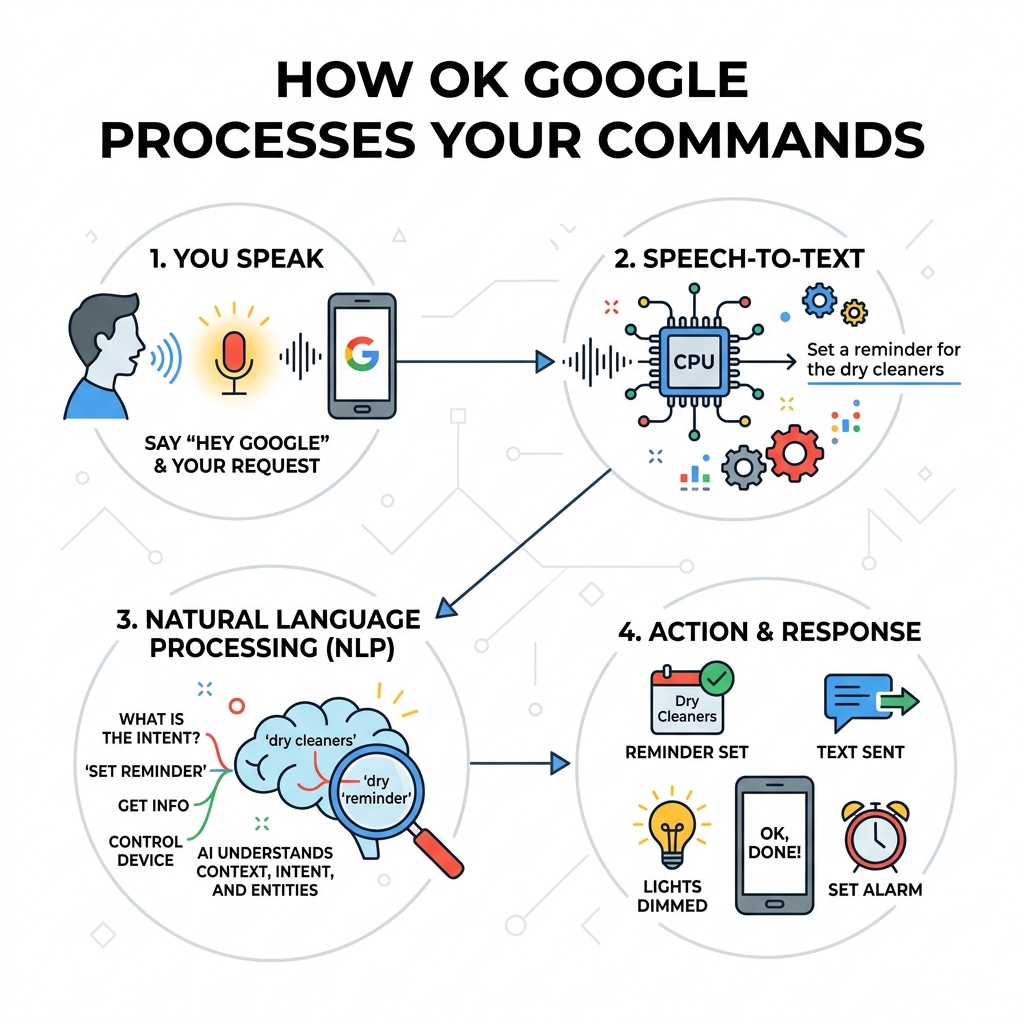
Understanding the Capabilities of Your Google Assistant
When we talk about the voice assistant ok google, we are looking at a tool designed to be your own personal Google. Its primary function is to bridge the gap between your thoughts and your digital actions. Instead of digging through apps, you simply state what you need.
The capabilities are vast. For task management, we can ask it to “Remind me to buy a birthday gift for Sarah” or “Set a timer for 10 minutes.” It handles real-time answers with ease—whether you need to know the weather, the current exchange rate (like how many dollars are in 3 euros), or how to say “one coffee please” in Spanish.
One of the most powerful features is smart home control. By integrating your assistant with your home ecosystem, you can use commands to dim lights, adjust the thermostat to 20 degrees, or lock the front door. If you are just starting out with home automation, check out our simple Google Home setup tips to see how voice commands can transform your living space.
Beyond tasks, it is a master of media and navigation. You can say, “Play jazz music on YouTube” or “Navigate to the nearest coffee shop,” and the assistant handles the rest. With support for over 30 languages on Android and 22 on iOS, it is a truly global companion.
Setting Up Your Voice Assistant Ok Google on Android and iOS
Setting up your voice assistant ok google is a straightforward process, but the steps vary slightly depending on your hardware.

For Android users, the assistant is usually baked into the operating system. You can activate it by touching and holding the Home button or simply saying “Hey Google.” If it isn’t responding, you may need to visit the Google Assistant page on Google Play to ensure the app is installed and updated.
For those on iPhone or iPad, you will need to download the Google Assistant app from the App Store. Once installed, you can add a widget to your home screen or use Siri Shortcuts to bridge the gap for easier access. To make the most of your mobile experience, we recommend following these beginner-friendly voice assistant tips to streamline your first few days with the AI.
Voice Match is a critical part of the setup. This technology teaches the assistant to recognize your specific voice frequency, preventing strangers from triggering your device. During setup, you’ll be asked to say “Hey Google” several times so the system can build a unique vocal profile for you. This also allows for multi-device synchronization; your phone, tablet, and smart speaker will all know it’s you speaking, ensuring that the right device responds to your command.
System Requirements for Voice Assistant Ok Google
Before you dive in, ensure your hardware is up to the task. The requirements are relatively modest, but they are strict for the best performance:
- Android: You need Android 5.0 or higher with at least 1.0GB of memory. If you are on Android 6.0+, you should have 1.5GB of RAM. Your screen resolution must be 720p or higher.
- iOS: Your device must be running iOS 15.0 or later. The app size is approximately 267.4 MB.
- Google App: Ensure your Google app is version 6.13 or higher.
If you are using a Google-branded device, you can find specific instructions on how to get started with the Assistant on Pixel, which often includes exclusive features.
Customizing Your Voice Assistant Ok Google Experience
We believe that an assistant should feel personal. You can customize the voice of your assistant, choosing from various accents and tones in the settings menu.
For those who find the wake word repetitive, Quick Phrases are a game-changer. On supported devices (like Pixel 6 and later), you can say “Snooze” for an alarm or “Decline” for a call without saying “Hey Google” first. You can also adjust the sensitivity of the “Hey Google” detection if your phone triggers too often—or not often enough.
To take your customization further, we suggest setting up easy smart assistant routines. These allow you to trigger multiple actions with a single phrase, such as “Hey Google, Good Morning,” which could turn on the lights, read the news, and tell you your first calendar appointment.
Advanced Features: From Call Assist to Gemini Integration
The world of Google Assistant is currently undergoing a massive shift with the introduction of Gemini. Gemini is Google’s experimental generative AI that provides more conversational and creative responses.
Users can now opt-in to Gemini to replace standard Assistant functions on select devices. While the traditional assistant is great at “doing” (setting timers, turning off lights), Gemini is excellent at “thinking” (summarizing emails, brainstorming ideas). Many users find that creating the best routines for smart assistants becomes even more powerful when Gemini’s reasoning capabilities are involved.
| Feature | Standard Assistant | Gemini AI |
|---|---|---|
| Smart Home Control | Excellent | Integrated Support |
| Task Management | Native (Timers/Alarms) | Supported via Assistant |
| Conversational Ability | Basic / Scripted | Advanced Generative AI |
| Creativity | Limited | High (Drafting/Summarizing) |
Call Assist is another advanced suite of tools. It can screen calls to filter out spammers, predict menu options when you call a business, and even “Hold for Me,” alerting you only when a real human comes back to the line.
Unique Tools and Hands-Free Photography
For photography enthusiasts, the voice assistant ok google offers unique hands-free tools. If you own a Pixel Fold, you can say “Hey Google, take a selfie” to capture a photo while the phone is propped up. This is part of a broader trend toward making devices more accessible. Learning these first steps to mastering smart home assistants will help you discover these hidden gems that make everyday life just a little bit easier.
Managing Privacy and Security for Your Voice Assistant
Privacy is often the biggest concern for new users. Google has built-in several layers of protection to ensure you stay in control of your data.
All data sent to the cloud is encrypted in transit. You have the power to manage your history at any time. You can say, “Hey Google, delete what I said this week,” or go into your settings to wipe your entire activity history.
If you are using a tablet, you can learn how to access Google Assistant with your voice while maintaining strict privacy boundaries. For those using the assistant in a professional or educational setting, be aware that Workspace admins have the power to enable or disable voice features for the entire organization.
We also recommend checking your third-party sharing settings. While the assistant works with apps like Spotify, Netflix, and various fintech tools, you decide which services have access to your voice data. Keeping your assistant “lean” by only connecting necessary apps is one of our top smart assistant energy-saving tips for both your battery and your privacy.
Troubleshooting Your Voice Assistant Ok Google
Even the best tech has hiccups. If your voice assistant ok google isn’t responding, the first step is usually to check the microphone. Dust or a heavy phone case can often block the mic, preventing the assistant from hearing the wake word.
If the assistant triggers when you didn’t call it, you likely need to retrain your Voice Match model. This can be done in the Assistant settings under “Hey Google & Voice Match.”
Some users report frustration with the transition to Gemini, noting that it sometimes prompts them to switch when they’d rather stay with the classic assistant. If you find yourself struggling with connecting multiple smart assistants or dealing with software glitches, a simple update to the Google app or a device restart usually clears the cache and fixes the issue. For more help, our beginner-friendly assistant automation tips cover common troubleshooting steps for new users.
Frequently Asked Questions about Voice Assistant Ok Google
How do I use Google Assistant on a locked screen?
To use the assistant without unlocking your phone, go to your Assistant settings and enable “Assistant on lock screen.” You must also have “Hey Google” toggled to active. That for sensitive tasks—like reading your emails or messages—you may still need to unlock the device unless you have specifically allowed “Personal results” on the lock screen.
What is the difference between Google Assistant and Gemini?
Google Assistant is the traditional voice helper designed for quick actions, smart home control, and utility. Gemini is a newer, experimental generative AI. While Gemini can handle many Assistant tasks, its main strength is complex reasoning, creative writing, and deep integration with Google Workspace. Users currently have the choice to opt-in to Gemini as their primary assistant.
Which languages are supported for voice commands?
On Android, Google Assistant supports over 30 languages, including English (various regions), Spanish, French, German, Hindi, Japanese, and Portuguese. On iOS, it supports 22 languages. You can also download offline speech recognition packs in your settings to ensure the assistant works even when your internet connection is spotty.
Conclusion
At FinMoneyHub, we are dedicated to helping you achieve smart tech mastery. Whether you are looking to simplify your morning with a routine or need to master complex command capabilities for your smart devices, the voice assistant ok google is the perfect place to start.
By taking the time to set up Voice Match, customize your quick phrases, and understand your privacy settings, you turn a simple phone feature into a powerful digital ally. Ready to take your smart home to the next level? Explore more smart assistant resources on our site to stay ahead of the curve.
