
Advanced Home Automation Commands for the Truly Ambitious
Why Complex Home Automation Commands Are the Next Step for Serious Smart Home Users
Complex home automation commands are the difference between a home that reacts and one that thinks. If you’ve outgrown simple “turn off the lights at 9pm” routines, this guide is for you.
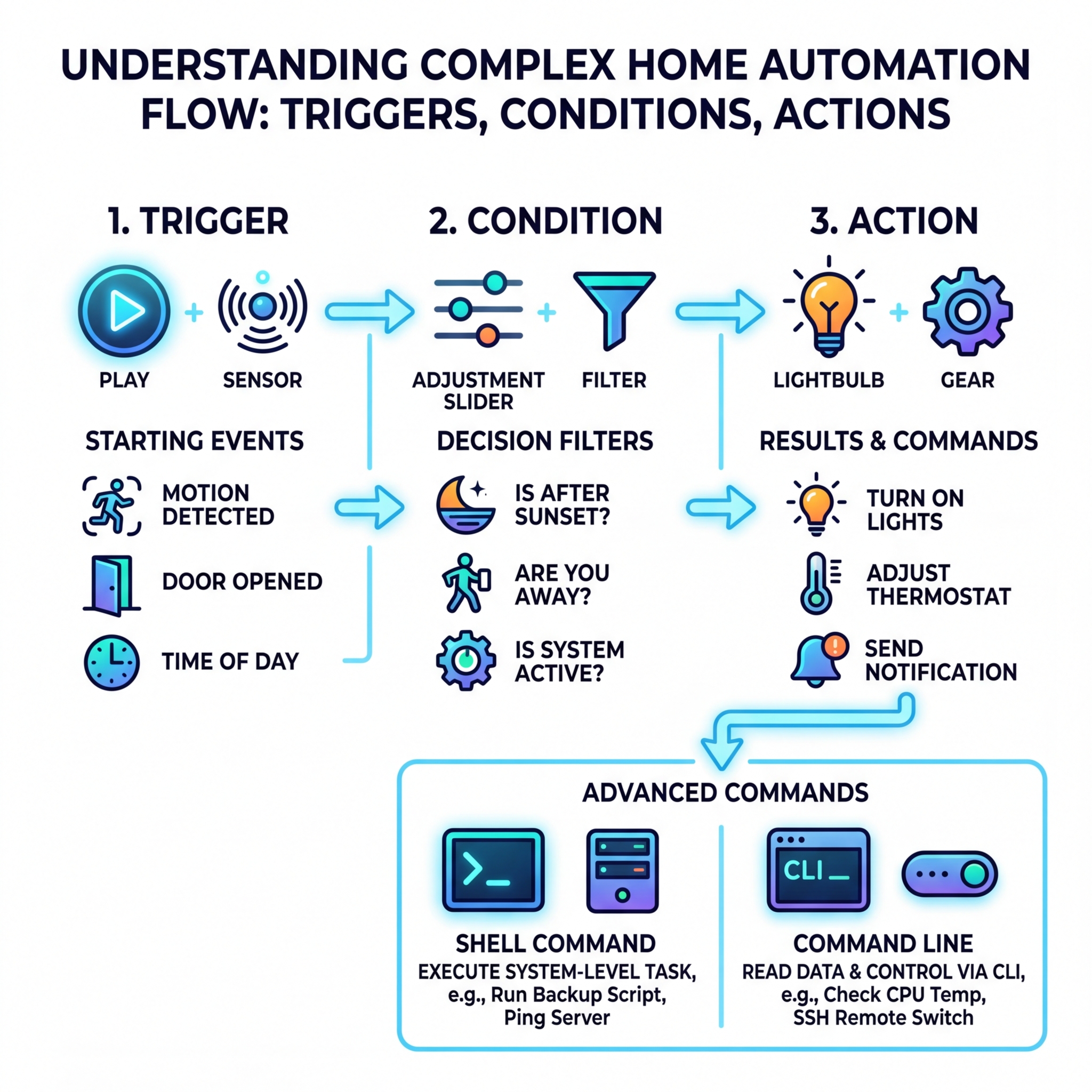
Here’s a quick breakdown of what advanced home automation commands actually involve:
| Component | What It Does | Example |
|---|---|---|
| Trigger | Starts the automation | Motion detected, door opened |
| Condition | Filters when it runs | Only after sunset, only if away |
| Action | What happens | Run script, send alert, toggle device |
| Shell Command | Executes system-level tasks | Backup files, ping a server |
| Command Line | Reads or controls via CLI | CPU temp sensor, SSH remote switch |
Most smart home users tap about 20% of what their setup can actually do. Platforms like Home Assistant let you go far deeper — running shell scripts, parsing live system data, controlling remote devices over SSH, and building self-healing automations that fix problems before you notice them.
The gap between a basic smart home and a truly automated one comes down to one thing: knowing which tools to use and how to connect them.
This guide walks you through exactly that — from configuring shell_command and command_line in Home Assistant, to scripting Google Nest routines in YAML, to locking down security so nothing breaks.
Mastering the Architecture of Complex Home Automation Commands
When we talk about deep system control, we are usually looking at two heavy hitters in the Home Assistant ecosystem: shell_command and command_line. While they sound similar, they serve very different roles in our automation architecture.
Think of shell_command as a “verb.” It is an action you call when you want something to happen—like triggering a backup or sending a custom notification. On the other hand, command_line is more like a “state.” It allows us to create sensors that read data (like checking if a server is online) or switches that control devices via scripts.
To get started, we have to dive into the configuration.yaml file. This is the “brain” of our setup. By adding these integrations, we bridge the gap between simple UI toggles and low-level system power.

Comparing Shell Command vs. Command Line
| Feature | shell_command |
command_line |
|---|---|---|
| Primary Use | Executing an action/service | Creating sensors, switches, or binary sensors |
| Output Handling | Captures stdout/stderr via response variables | Parses output into a state or attribute |
| Triggers | Called manually or by automations | Polls at intervals (scan_interval) |
| Environment | Home Assistant Docker container | Home Assistant Docker container |
According to Beyond Integrations: Mastering shell_command and command_line for Deep System Control in Home Assistant, these tools are indispensable for ultimate control because they allow us to integrate any device that can be reached via a terminal, even if a native integration doesn’t exist.
The Docker Environment Reality
It is important to remember that if you are running Home Assistant OS or Supervised, these commands execute inside a Docker container. This means you are operating as the root user within that container, but you don’t have direct access to the host files unless they are in the /config directory. This is a safety feature, but it can be a hurdle if you aren’t prepared for it!
Configuring Shell Commands for Dynamic Actions
To enable these complex home automation commands, we first add the following to our configuration:
shell_command:
  send_telegram_backup_log: 'bash /config/scripts/backup_log.sh'
But why stop at static commands? The real magic happens when we use Jinja templating. This allows us to pass dynamic data from our smart home entities directly into a script. For example, if you want to send a custom IR command to an AC unit based on a slider value, you could use:
set_ac_to_slider: 'irsend SEND_ONCE AC_{{ states("input_number.ac_temp") }}'
Making Scripts Executable
We’ve seen many users struggle because their scripts won’t run. Any script you create in your /config/scripts/ folder must be made executable. You can do this via the terminal with a simple chmod +x /config/scripts/your_script.sh.
If you are looking for more foundational inspiration before going full-throttle into scripting, check out our more info about simple smart home automation ideas to see how these logic flows begin.
Building Command Line Sensors for System Monitoring
One of the most powerful ways to use complex home automation commands is to turn raw system data into visible sensors. We can monitor everything from disk usage to the temperature of our Raspberry Pi CPU.
A standard command_line sensor looks like this:
command_line:
  - sensor:
 name: "CPU Temperature"
 command: "cat /sys/class/thermal/thermal_zone0/temp"
 unit_of_measurement: "°C"
 value_template: "{{ value | multiply(0.001) | round(1) }}"
Optimizing Performance with Scan Intervals
By default, these sensors might poll too often or too slowly. We use the scan_interval variable to define how frequently the command runs. For a CPU temp, every 60 seconds is fine. For a network status check, you might want it every 30 seconds.
Handling Complex Output (JSON, awk, sed)
Sometimes a command returns a mess of text. We can use awk or sed to filter that data before it even reaches Home Assistant. If the command returns JSON, Home Assistant can parse it using json_attributes. This is perfect for more info about easy smart appliance automation, where you might be pulling data from a custom local API.
Secure Remote Execution and Multi-Protocol Bridging
What if the device you want to control isn’t the one running Home Assistant? This is where SSH (Secure Shell) comes in. We can use complex home automation commands to reach out across our network and manage remote servers or media centers.
To do this securely, we never use passwords. Instead, we use SSH keys.
- Generate a key:
ssh-keygen -t ed25519 -f /config/.ssh/id_ed25519. - Copy it to the remote device:
ssh-copy-id -i /config/.ssh/id_ed25519.pub user@remote_host. - Reference the key in your command:
ssh -i /config/.ssh/id_ed25519 user@remote_host 'sudo systemctl restart nginx'.
This approach allows us to bridge non-native devices. As noted in the Command line Switch – Home Assistant documentation, this is arguably the most powerful platform because it lets you integrate anything that has a command-line interface, including Zigbee or Z-Wave bridges that might not have a direct integration.
Advanced Security for Complex Home Automation Commands
With great power comes great responsibility (and potential security holes). When we execute system-level commands, we must follow strict best practices.
- Sudoers Configuration: If a command requires
sudo, don’t give Home Assistant full root access to the remote machine. Instead, edit thesudoersfile on the remote host to allow only that specific command to run without a password. - Directory Restrictions: Keep all your custom scripts within the
/configdirectory. This ensures they are included in your backups and are accessible within the Home Assistant environment. - Persistence: The
/rootand/tmpdirectories in a Docker container are not persistent. Always store your SSH keys and known_hosts in/config/.ssh/.
For those just starting to think about safety, our more info about simple security automation ideas provides a great baseline for protecting your physical and digital space.
Real-World Applications: From Safety Alerts to Energy Management
How does this all look in a real home? We use complex home automation commands to create “self-healing” systems.
- The Self-Healing Server: A
command_linesensor monitors your web server. If it returns a “500 Error,” an automation triggers ashell_commandto restart the service via SSH and sends a Telegram notification to your phone. - Energy Management: We can pull live data from power outlets. If the TV power draw drops below 50W for 10 minutes, we assume you’ve fallen asleep and trigger a “Shutdown House” routine that locks the doors and dims the lights.
- Safety Alerts: Integrate a smoke detector that, when triggered, executes a shell command to flash all LIFX bulbs red and blue using the “Breathe” effect, while simultaneously announcing an evacuation route over your smart speakers.
Many of these projects can be done yourself with a bit of patience. See our more info about easy-diy-home-automation-projects for more hands-on ideas.
Scripting Complex Home Automation Commands for Google Nest
Even if you aren’t a Home Assistant power user, Google Nest has introduced a powerful Script Editor (available in Public Preview). This editor uses YAML—the same language used in Home Assistant—to create advanced Household Routines.
In the Google Nest Script Editor, you deal with:
- Starters: Triggers like
device.state.OnOffortime.schedule. - Conditions: Logic like
home.state.HomePresence(is anyone home?). - Actions: The result, such as
device.command.BrightnessAbsolute.
This is a massive leap for Google Home, moving it from a “simple app” to a developer-friendly platform. For tips on how to structure these, check out our more info about best routines for smart assistants.
Troubleshooting and Performance Optimization
When your complex home automation commands fail, the first place to look is the Exit Code. In shell scripts, an exit code of 0 means success. Anything else (like 1 or 127) means something went wrong.
Common Troubleshooting Steps:
- Check Permissions: Is the script executable (
chmod +x)? - Verify Paths: Always use absolute paths (e.g.,
/config/scripts/test.shinstead of./test.sh). Debug Logging: Add a logger configuration to your
configuration.yamlto see exactly what the command is outputting:logger: default: info logs: homeassistant.components.shell_command: debug homeassistant.components.command_line: debugTimeout Limits: Home Assistant will kill any
shell_commandthat takes longer than 60 seconds. If your script takes longer (like a large backup), run it in the background using&.
According to the official Shell Command – Home Assistant documentation, approximately 5.3% of active installations use these advanced integrations, proving that while they are “complex,” they are a staple for the ambitious hobbyist.
Frequently Asked Questions about Advanced Automations
What is the core difference between shellcommand and commandline?
shell_command is an action you trigger (like a button press in an automation). command_line is a platform used to create entities like sensors or switches that stay in your dashboard and update automatically.
How do I pass dynamic data from entities to a shell script?
You use Jinja2 templates. By wrapping your command in quotes and using double curly braces—{{ states('sensor.your_entity') }}—Home Assistant will swap that text for the actual value of the sensor before running the command.
Why is my SSH command failing within the Home Assistant container?
The most common reason is a missing known_hosts file or incorrect permissions on the private key. Ensure your keys are in /config/.ssh/, the permissions are set to 600, and you have manually connected once via the terminal to accept the host key.
Conclusion
At FinMoneyHub, we believe that the true power of smart tech lies in customization. Moving into the realm of complex home automation commands allows you to future-proof your home and create a truly bespoke living environment. Whether you are parsing system metrics to keep your hardware cool or bridging old legacy devices into a modern YAML-based ecosystem, the tools are now at your fingertips.
Ready to take your setup even further? Explore our more info about smart assistant routines to keep your home running at peak intelligence. Happy automating!
