
Stop Controlling Bulbs One by One with Google Home Groups
Why Controlling Lights One by One Is a Smart Home Problem Worth Solving
Google home create light group is easier than most people think — and it can save you a surprising amount of daily frustration.
Here’s the quick answer:
How to create a light group in Google Home:
- Open the Google Home app and tap Devices
- Press and hold the light you want to group
- Tap the gear icon to open settings
- Tap Room, then select an existing room or create a new one
- Tap Save — lights in the same room are now controlled as a group
- Use a voice command like “Hey Google, turn on the living room lights” to control them all at once
Note: Google Home groups lights automatically by room. There is no manual “create group” button — room assignment is the grouping mechanism.
Think about your evening routine. You want to turn off the kitchen lights, the hallway lights, and the living room lamps before bed. Without grouping, that’s at least three separate commands — or a lot of tapping through the app.
Light groups fix that. Instead of talking to each bulb individually, you talk to a room or a named set of lights. One command. Done.
The catch? Google Home’s grouping system is built around rooms, not custom groups. Unlike some competing platforms, you can’t just draw a circle around any random set of bulbs and name it. But there are smart workarounds — and once you know them, the system works well.
Whether you have a simple two-room setup or a whole-home lighting system, getting your lights grouped correctly makes your smart home feel genuinely smart.

Mastering the Google Home Create Light Group Process
At FinMoneyHub, we know that the biggest hurdle for smart home beginners is often the interface. You expect a “Create Group” button, but Google Home does things a bit differently. It uses a hierarchical logic: your Home contains Rooms, and those Rooms contain Devices.
When you want to google home create light group, you aren’t building a folder; you are assigning roommates. Google’s logic dictates that if two or more lights are assigned to the same room, they are effectively a group. This automatic grouping logic is why organizing your homes and devices in the Google Home app is the most critical step in your setup.
If you have four bulbs in a chandelier, you don’t want to tell Google to turn on “Bulb 1, Bulb 2, Bulb 3, and Bulb 4.” By placing them all in the “Dining Room,” Google understands that a command for the “Dining Room Lights” applies to all four. This is one of our favorite simple Google Home setup tips because it cleans up your dashboard and your voice interactions simultaneously.
Step-by-Step Guide to Google Home Create Light Group
If you’ve just added a new smart bulb and it’s sitting in your “Unassigned” list, it won’t respond to room-wide commands. Here is how we bring it into the fold:
- Open the App: Launch the Google Home app on your smartphone or tablet.
- Navigate to Devices: Tap the Devices tab at the bottom of the screen.
- Select Your Light: Find the specific light you want to group. Press and hold its tile.
- Access Settings: Tap the gear icon (Settings) in the top right corner.
- Set the Room: Tap on Room. You will see a list of your existing rooms.
- Assign or Create: Select the room where the light is physically located (e.g., “Living Room”). If the room doesn’t exist yet, scroll to the bottom and tap Add a custom room.
- Save: Tap Save in the bottom right.
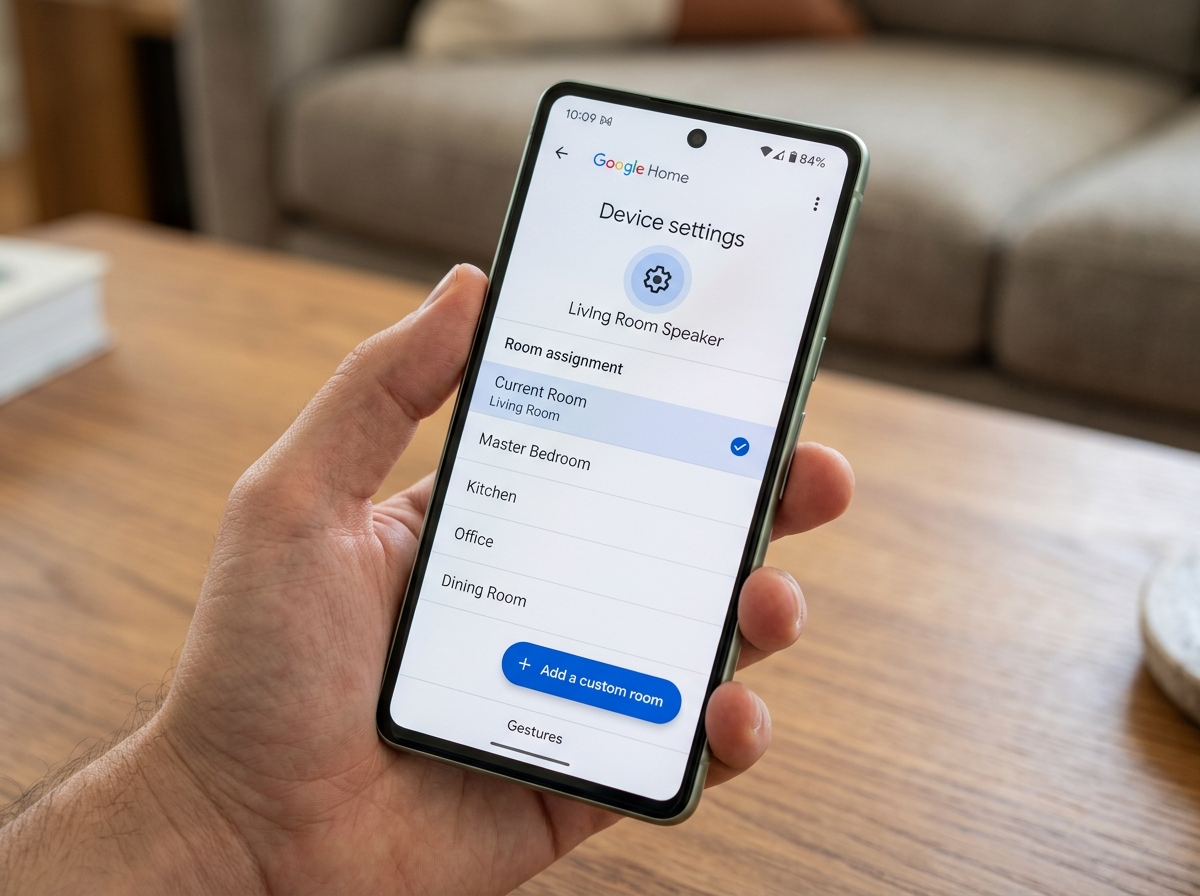
Once you repeat this for all lights in that area, Google will show a “Light” toggle at the top of that room’s section in the app. Tapping this single button toggles every light in that room.
Managing Groups via the Favorites Tab
Google recently introduced a game-changing update for those of us who hate digging through menus. If you are part of the Public Preview or use a Pixel Tablet with the Home Panel, you can now add entire light groups to your Favorites tab.
Previously, you had to add every individual bulb to your favorites, which cluttered the screen. Now, you can add a single “Room Light” tile. This allows for room-wide toggles with one tap. This is a massive win for unveiling the best smart lighting options for beginners because it makes the most-used controls the easiest to find. To do this, scroll to the bottom of your Favorites tab, tap Edit, and look for the room groups under the lighting section.
Advanced Workarounds for Custom Light Groups
While room-based grouping is fine for simple setups, what happens if you have a large “Great Room” that functions as both a kitchen and a living area? Or what if you have three lamps in one room that you want to control together, but separately from the ceiling lights?
Google Home technically lacks a native “subgroup” feature for lights (unlike its speaker groups). However, we’ve found several “pro” workarounds that allow you to effectively google home create light group configurations that aren’t strictly tied to a single physical room. This is where smart home automation apps for beginners and a little creativity come into play.
Using Naming Conventions for a Google Home Create Light Group
Google Assistant is smarter than the app interface suggests. It uses “fuzzy logic” for naming. If you name three different lights with the same prefix, Google will treat them as a pseudo-group for voice commands.
For example, if you have three bulbs in a floor lamp, name them:
- Floor Lamp 1
- Floor Lamp 2
- Floor Lamp 3
When you say, “Hey Google, turn on the Floor Lamp,” it will turn on all three. This works even if they are in a room with other lights. We recommend this as one of the top-rated smart lighting apps for beginners strategies because it requires zero extra software. Just keep your naming consistent! Avoid naming them “Left Lamp” and “Right Lamp” if you want to control them with one “Lamp” command.
Creating “Fake Rooms” for Specific Lighting Scenes
This is a favorite “hack” in the smart home community. Since Google groups by room, you can create “fake” rooms to act as groups.
Let’s say in your bedroom, you have ceiling lights and two nightstand lamps. You want to be able to say “Turn off the nightstand lights” without turning off the main light.
- Create a “room” called “Nightstands.”
- Move your two bedside bulbs into this “Nightstands” room.
- Keep the ceiling light in the “Bedroom” room.
Now, you have granular control. The only downside is that the “Nightstands” bulbs will no longer turn off when you say “Turn off the Bedroom,” because they are technically in a different “room.” This is a trade-off for beginner-friendly guide to installing smart bulbs users who want specific ambiance management without complex coding.
Leveraging Routines and Third-Party Apps for Better Control
If the room and naming hacks aren’t enough, it’s time to look at Routines. At FinMoneyHub, we specialize in helping you master smart assistant routines to handle complex commands. Routines allow you to group any device, regardless of what room it’s in or what it’s named.
| Feature | Room Groups | Custom Routines |
|---|---|---|
| Setup Effort | Low (Automatic) | Medium (Manual) |
| Cross-Room Support | No | Yes |
| Voice Command | Room Name | Custom Trigger Phrase |
| Brightness/Color | General | Specific Presets |
| Multi-Device Type | Lights Only | Lights, Plugs, Thermostats |
Automating Your Google Home Create Light Group with Routines
Routines are the ultimate way to google home create light group functionality without limitations. You can create a routine called “Movie Time” that dims the living room lights to 10%, turns off the kitchen lights, and turns on a decorative LED strip in the hallway.
To set this up:
- Open the Google Home app and tap Routines.
- Tap the + (plus) icon to create a new routine.
- Choose a trigger (e.g., the voice command “Let’s watch a movie”).
- Tap Add Action > Adjust Home Devices > Lights.
- Select every light you want to include, regardless of their room.
- Set the specific brightness and color for each.
- Save the routine.
This is a core part of our smart lighting category advice: use rooms for daily convenience, but use routines for “scenes” and specific moods.
Integrating Third-Party Ecosystems
Sometimes, the best way to manage groups isn’t in Google Home at all—it’s in the app that came with your bulbs. Apps like Smart Life or Philips Hue allow you to create “Zones” or “Groups” natively.
When you link these accounts to Google Home, the groups often sync over. For instance, if you create a group in the Smart Life app, Google Assistant will often recognize that group name immediately. With the rise of Matter support, this cross-platform syncing is becoming even more reliable. For more on this, check out our guide on top-rated smart lighting apps for beginners 2.
Troubleshooting and Best Practices for Smart Lighting Groups
Even with a perfect setup, technology can be finicky. If your google home create light group efforts aren’t yielding results, it’s usually down to one of three things: connectivity, naming, or firmware.
- Connectivity and Wi-Fi: Smart bulbs are notorious for “dropping off” the network. If one bulb in a group doesn’t respond, it’s likely a Wi-Fi dead zone. Ensure your router can handle the number of devices you’ve connected.
- Firmware Updates: Manufacturers frequently release updates to improve how bulbs talk to Google. Open the original manufacturer’s app periodically to check for updates.
- Descriptive Naming: Avoid using names that sound too similar to other devices. “Light 1” and “Light A” might confuse the voice recognition engine.
- Device Resets: If a bulb is acting up, a factory reset (usually involves toggling the light switch on and off 5 times) can fix internal software glitches.
For more detailed help on specific assistants, explore our smart assistants category.
Frequently Asked Questions about Google Home Light Groups
Can I create a light group that spans multiple rooms?
Native room-based grouping does not allow a light to be in two rooms at once. To control lights across multiple rooms, you should use a Routine. This allows you to select any combination of lights across your entire home and trigger them with a single command like “Turn off all downstairs lights.”
Why aren’t my grouped lights responding to voice commands?
First, check if the lights are assigned to the correct room in the Devices tab. If they are, ensure your naming isn’t conflicting. If you say “Turn on the lights” and you are standing near a Google Nest speaker, it will only turn on the lights in the same room as that speaker. To turn on all lights, you must say “Turn on all the lights.”
How do I add a light group to my Favorites tab?
In the latest version of the Google Home app, go to the Favorites tab and tap Edit. Scroll down to the “Rooms” or “Lighting” section. You should see an option to add a room-wide light controller. Check the box and tap Save. Note: This feature is rolling out gradually, so if you don’t see it, ensure your app is updated to the latest version.
Conclusion
Mastering the google home create light group process is the secret to turning a collection of gadgets into a cohesive smart home. While Google’s reliance on room-based grouping can feel restrictive at first, the combination of clever naming, “fake rooms,” and powerful routines gives you all the control you need.
At FinMoneyHub, we believe that smart technology should work for you, not the other way around. By streamlining your lighting, you reduce the “digital friction” of your daily life, leaving you more time to focus on what matters. Whether you’re setting the mood for a movie or just trying to make sure every light is off before you hit the pillow, these grouping techniques are your best friend.
Ready to take your automation to the next level? Explore our deep dives into smart assistant routines and master your smart lighting setup today.
