
Assistant Routines for Payments: The Future of Hands-Free Finance
How Assistant Routines for Payments Are Changing the Way We Handle Money
Assistant routines for payments are automated sequences that let you send money, fill in checkout details, and manage expenses using just your voice or a simple trigger — no tapping through apps required.
Here’s what you can do with payment assistant routines:
- Send or request money by saying something like “Hey Google, send [name] $20”
- Auto-fill payment details at checkout for online orders using saved info from Google Pay
- Track spending automatically using SMS bank alerts and shortcut automations
- Manage corporate expenses with AI tools that handle receipts, memos, and policy checks
If you’re juggling multiple devices, apps, and payment methods, doing all of this manually is a real time drain. Google Assistant alone has over 1 billion downloads — and its routines feature has been helping users automate daily tasks since 2017.
The promise is simple: set it up once, and your assistant handles the rest.
But getting payment routines to actually work the way you want takes a bit of know-how. This guide walks you through exactly how to set them up, keep them secure, and get the most out of hands-free finance.

Understanding Assistant Routines for Payments
At FinMoneyHub, we believe that technology should work for you, not the other way around. To master assistant routines for payments, we first need to understand the building blocks of any smart automation: Starters and Actions.
A Starter is the trigger. It could be a voice command like “Hey Google, I’m heading out,” a specific time of day, or even your arrival at a location. An Action is what the assistant does in response, such as checking your bank balance or initiating a transfer.
Google Assistant categorizes these into two main types:
- Personal Routines: These are specific to you. They can access your personal results, like your specific Google Pay history or your private calendar.
- Household Routines: These are shared. Any member of your home can see or edit them. These are great for shared expenses, like a routine that triggers a porch light when a delivery person arrives with a paid-for order.
For those of us managing more than just personal coffee runs, the technology has evolved into sophisticated agents. For instance, the Overview of the Payments AI Agent shows how AI can now handle complex card management and transaction issues without needing a human to intervene. Whether you are a solo user or part of a larger team, these routines are designed to reduce the “mental load” of financial management.
If you are just getting started with the basics of smart home tech, you might want to check out more info about easy smart assistant routines to build your confidence before diving into financial automations.
Setting Up Voice-Activated Money Transfers
The most common way we use assistant routines for payments is for peer-to-peer (P2P) transfers. Imagine you’re out for dinner and want to settle the bill. Instead of opening an app, finding the contact, and typing in the amount, you can simply speak to your phone.
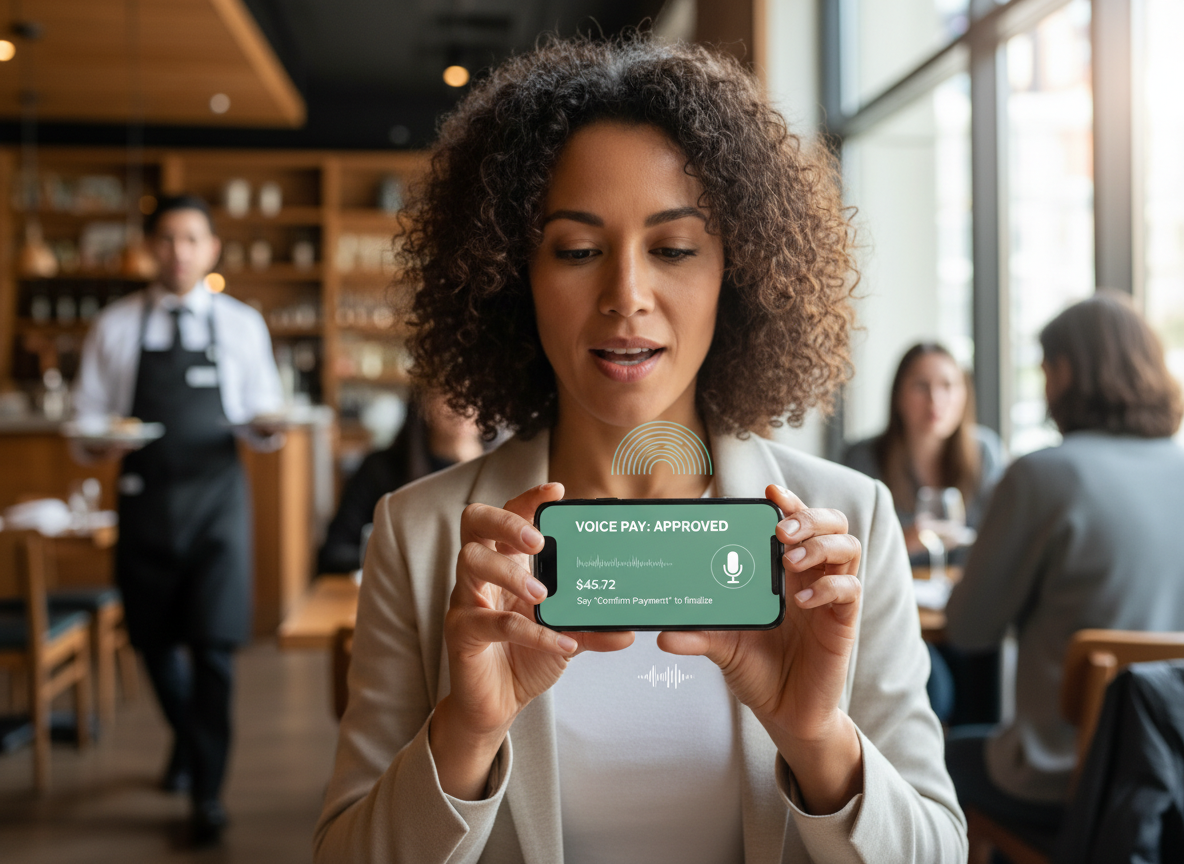
Google Assistant integrates directly with Google Pay to facilitate these transactions. According to Use Google Assistant to Send, Request Money | PCMag, the funds are transferred almost instantaneously. Even if the person you are paying doesn’t have a Google Pay account, they will receive a notification via email or text to collect the funds.
Common commands include:
- “Hey Google, send Angela $15 for pizza.”
- “Hey Google, request $20 from Mark for the movie tickets.”
Configuring Your Assistant Routines for Payments
Before you can start shouting orders at your phone, we need to ensure your security settings are airtight. Security is the top priority for us at FinMoneyHub, and Google Assistant has built-in safeguards to prevent accidental or unauthorized transfers.
- Account Linkage: When you first ask the assistant to send money, it will prompt you to set up or link a Google Pay account.
- Verification Requirements: You cannot send money via voice alone without a secondary check. For every transaction, you must verify your identity using your Google account password or a biometric check like a fingerprint.
- App Setup: Ensure the Google Pay app is updated. Google recently unified its payment systems (combining Android Pay and Google Wallet) into the single Google Pay brand to make the experience simpler and more consistent.
For more help on getting your assistant ready for these tasks, see our beginner-friendly assistant automation tips.
Automating Online Purchases and Takeout Orders
One of the coolest features rolled out recently involves Duplex AI. This technology allows Google Assistant to navigate restaurant websites on your behalf.
As noted in Google Assistant can fill out your payment info for your next takeout order, the assistant can automatically fill in your contact and payment details when you order from partnered restaurants. It pulls this information from Chrome Autofill and Google Pay, saving you from the tedious task of re-entering your 16-digit card number on a tiny mobile screen.
Streamlining Daily Assistant Routines for Payments
To make this work seamlessly, we recommend a few “pro” steps:
- Sync Your Data: Ensure your payment info is saved in your Google Account and that “Sync” is turned on in your Chrome browser.
- Use the Google App: This feature works best when you search for a restaurant directly in the Google App on Android and tap the “Order Online” button.
- Check for Partnerships: While Duplex AI is smart, it works most reliably with restaurants that have partnered with Google’s ordering platform.
For those who want to integrate these ordering habits into their morning or evening schedules, we suggest looking at the best routines for smart assistants to see how to combine food ordering with other tasks like traffic updates.
Advanced Financial Management and Security
Beyond just spending money, assistant routines for payments can help you track where every cent goes. This is where automation really shines for budgeting.
For iPhone users, tools like the RoutineHub • Transaction Visualizer offer a unique way to manage budgets. By using SMS alerts from your bank as a “Starter,” a routine can automatically log every transaction into a text file and display your remaining budget on a lock screen widget. This means you can see your financial health without ever opening a banking app.
Manual vs. Automated Expense Tracking
| Feature | Manual Tracking | Automated Payment Routines |
|---|---|---|
| Speed | Slow (requires app entry) | Instant (triggered by alert) |
| Accuracy | Prone to human error | High (direct data pull) |
| Effort | High (requires discipline) | Low (set it and forget it) |
| Visibility | Requires opening apps | Widgets and voice updates |
Corporate and Small Business Payment Automation
For our business-minded readers, assistant routines for payments aren’t just for personal use. Tools like the Brex Assistant use AI to automate the “boring” parts of business finance.
We’ve seen these assistants handle:
- Receipt Management: Automatically matching a photo of a receipt to a card transaction.
- Memo Requirements: Using AI to suggest the correct accounting category for a purchase.
- Policy Compliance: Flagging expenses that don’t fit company rules and following up with employees via Slack.
Security Protocols and Limitations
We must emphasize that while routines are convenient, they are not a replacement for traditional security. Google explicitly warns that routines should not be used for “safety-critical” use cases.
Here are the limitations we’ve found:
- Two-Factor Authentication (2FA): If a payment requires a 2FA code sent to your phone, the routine may pause until you provide it.
- Device Compatibility: Not all routines work on all devices. For example, some payment-filling features are exclusive to Android phones and won’t work on a standalone Nest speaker.
- Safety Warnings: Never create a routine that could cause harm if it fails (like a routine that unlocks your front door when a payment is confirmed).
Frequently Asked Questions about Payment Routines
Is it safe to use voice commands for financial transactions?
Yes, provided you use the built-in security features. Google Assistant requires a fingerprint or password for every transaction. We recommend never disabling these verification steps, even for small amounts.
Can I use payment routines on both Android and iOS?
Most core features, like sending money via Google Pay, work on both. However, deep system integrations like Duplex AI form-filling or advanced iOS Shortcuts (like the Transaction Visualizer) are often platform-specific.
What happens if the recipient doesn’t have a compatible payment app?
In the case of Google Pay, the recipient will get a text or email with instructions on how to claim the money. They don’t need to have the app installed beforehand to receive the funds.
Conclusion
At FinMoneyHub, we are excited about how assistant routines for payments are making financial management more accessible. By moving away from manual data entry and toward intelligent, voice-activated commands, we can all save time and reduce the stress of staying on budget.
Whether you are automating your morning coffee order or setting up a complex expense tracking system for your small business, the tools are already in your pocket. The future of finance is hands-free, and with the right setup, you can master it today.
Ready to take the next step in your automation journey? Start managing your finances with FinMoneyHub and explore our latest guides on complex command capabilities for all your smart devices.
