
Why Location-Based Lighting Is the Smartest Upgrade You’re Not Using Yet
Geofencing smart light triggers are automations that turn your lights on or off based on where your phone is — no tapping, no voice commands, no forgetting.
Here’s the quick version of how it works:
- Your phone’s location is tracked using GPS, Wi-Fi, or cellular data.
- A virtual boundary (“geofence”) is drawn around your home in a smart home app.
- When you cross that boundary — arriving or leaving — your lights respond automatically.
- You customize what happens: lights on when you arrive, all off when you leave, or a full welcome scene at sunset.
The most popular platforms for setting this up include Philips Hue, Apple Home, Google Home, Amazon Alexa, and Samsung SmartThings — all of which have supported geofencing for years.
Most people with smart lights are still turning them on and off manually. That defeats half the purpose.
Think about it: you pull into the driveway after dark, hands full of groceries, fumbling for a switch. Or you’re halfway to work and can’t remember if you left the kitchen light on.
Geofencing solves both problems — automatically.
Smart lights with geofencing can cut your lighting energy use by 20–30% just by ensuring lights are never running in an empty home. And the setup, on most platforms, takes under five minutes.
This guide walks you through exactly how to set it up — from your first trigger to multi-user households and advanced automations.

What is Geofencing and How Does it Work?
At its core, geofencing is like an invisible digital fence surrounding a specific geographic point—usually your home. We call this a “virtual boundary.” But how does a light bulb in your hallway know that you just turned the corner three blocks away?
It isn’t magic; it’s a clever combination of technologies already sitting in your pocket. Your smartphone uses a trio of tools to pinpoint your location:
- GPS (Global Positioning System): Provides high-accuracy coordinates but can be a bit of a battery hog.
- Wi-Fi: Your phone recognizes local networks even if you don’t connect to them, helping the system understand you’re in a residential area.
- Cellular Data: Cell towers provide a general “neighborhood” level of location awareness.
When these three work together, your smart home app (like Philips Hue or Google Home) creates a proximity trigger. When your phone’s coordinates cross that digital line, the app sends a command through the cloud to your smart hub or bridge, which then flips the switch.
If you are just getting started with these concepts, Understanding Smart Light Scheduling for Beginners is a great place to learn how location-based triggers fit into a broader automated schedule.
Setting Up Your First Geofencing Smart Light Triggers
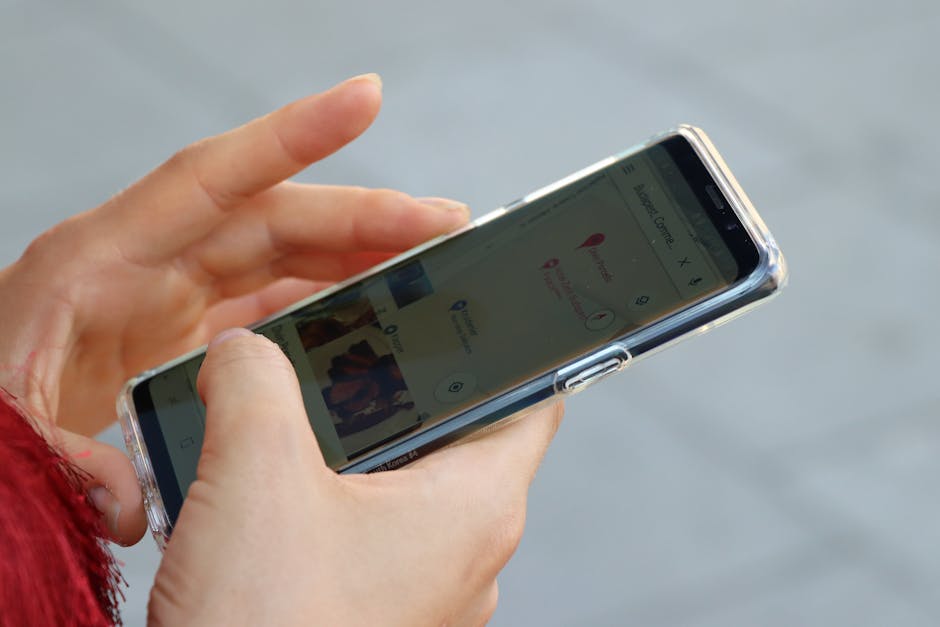
Setting up geofencing smart light triggers is surprisingly straightforward, but the “secret sauce” is in the permissions. If your phone doesn’t have permission to track your location in the background, your house will stay dark until you manually open the app—which defeats the purpose!
General Setup Steps:
- Enable Location Services: In your phone’s settings, find your smart home app and set location permissions to “Always Allow.”
- Define Your Home: Open your chosen app (Alexa, Apple Home, etc.) and set your home address.
- Adjust the Radius: Most apps let you choose how large the “fence” is. A small radius (150 feet) is great for lights, while a larger radius (several miles) is better for smart thermostats that need time to pre-heat the house.
- Connect the Hub: Ensure your smart bridge (like the Philips Hue Bridge) is connected to the internet so it can receive the “Arrived” signal from the cloud.
For a deeper dive into which apps work best for your specific devices, check out our guide on Smart Home Automation Apps for Beginners.
Arrive Home Geofencing Smart Light Triggers
The “Arrive Home” routine is the ultimate “welcome back” gesture. Imagine pulling into your driveway on a rainy Tuesday night. Before you even put the car in park, your porch light kicks on, the entryway glows warm white, and your living room lamps dim to a cozy 30%.
To make this even smarter, we recommend using sunset offsets. You probably don’t need your lights to turn on if you arrive home at 2:00 PM on a sunny Friday. Most platforms, including Philips Hue and Apple Home, allow you to set a condition: “Only trigger this automation if it is after sunset.”
This creates a seamless Simple Home Automation Routine that adapts to the seasons automatically.
Leave Home Geofencing Smart Light Triggers
The “Leave Home” trigger is the unsung hero of energy efficiency. We’ve all had that moment of panic ten minutes into a commute: “Did I leave the basement light on?”
With a geofencing “All-off” command, that worry disappears. As soon as your phone exits the virtual boundary, the system sends a sweep command to every bulb in the house.
Beyond saving money, this can also enhance security. You can set a “Security Simulation” or “Vacation Mode” where, upon your departure, certain lights stay on or flicker to mimic occupancy, deterring potential intruders. This is one of many Simple Smart Home Automation Ideas that provide peace of mind without any daily effort.
Advanced Strategies for Multi-User Households
Geofencing gets a little more complicated when you aren’t living alone. If you leave for work at 8:00 AM while your partner is still sleeping, you definitely don’t want the “Leave Home” trigger to plunge the bedroom into total darkness.
This is where presence detection and occupancy logic come into play. Modern systems like SmartThings or Apple Home handle this by tracking multiple devices. The logic shifts from “Turn off when I leave” to:
- First Person Arrives: Trigger the “Welcome Home” scene.
- Last Person Leaves: Trigger the “All-off” and “Secure Home” routine.
Platforms like iConnectHue or IFTTT (If This Then That) offer even more granular control. For example, you can use an IFTTT Applet to turn on lights only when a specific person crosses a “virtual fence” detected by a security camera. This allows for personalized scenes—maybe the lights turn blue when you arrive, but warm amber when your roommate does.
To master these complex interactions, see our breakdown of the Best Routines for Smart Assistants.
Combining Motion Sensors with Geofencing Smart Light Triggers
Even the best geofencing can occasionally lag if your cellular signal is weak. To ensure 100% reliability, we love combining geofencing with physical motion sensors.
While geofencing handles the “Macro” (knowing you are home), motion sensors handle the “Micro” (knowing which room you are in). By placing sensors in transitional areas like hallways or stairways, you can ensure that lights only stay on if someone is actually moving.
Pro Tip: Look for sensors with brightness measurement. This prevents the lights from turning on during a bright day, even if the geofence is triggered. This level of detail is essential for Simple Security Automation Ideas for Your Smart Home: A Guide for Beginners.
Troubleshooting and Optimizing Location Accuracy
If your lights are behaving erratically—turning on in the middle of the night or failing to trigger when you’re standing at the front door—it’s usually a matter of location accuracy.
| Technology | Accuracy | Best For… |
|---|---|---|
| GPS | High (5-10 meters) | Precise triggers, driveway entry |
| Wi-Fi | Medium | Urban areas with many hotspots |
| Cellular | Low | General neighborhood awareness |
Common Issues and Fixes:
- GPS Drift: Sometimes your phone “thinks” it jumped a block away for a split second. If your geofence radius is too small (e.g., exactly the size of your house), this “drift” might make the app think you left and came back, triggering the lights at 3:00 AM. Fix: Increase your radius to at least 150-300 feet.
- Battery Optimization: Android and iOS often “put apps to sleep” to save battery. If your smart home app is sleeping, it won’t check your location. Fix: Disable battery optimization for your smart home app.
- Wi-Fi Sleep Modes: Some routers drop connections to idle devices. Fix: Ensure your smart hub has a static IP or a “keep-alive” setting enabled.
For more help, our Beginner-Friendly Assistant Automation Tips offer a deep dive into keeping your smart home running smoothly.
Maximizing Energy Savings and Home Security
The benefits of geofencing smart light triggers go far beyond mere convenience. We are talking about real-world impact on your wallet and your safety.
Energy Savings: Statistics show that smart lighting with geofencing can reduce lighting energy consumption by 20-30%. When paired with geofencing thermostats (which can save 15-25% on HVAC), the total household energy reduction is massive. By ensuring that “vampire” devices and forgotten lights are killed the moment the last person leaves the driveway, you’re not just being tech-savvy—you’re being eco-friendly.
Enhanced Security: A dark house is a target. Geofencing allows for “Occupancy Simulation.” If you are away for the weekend, your lights can be programmed to turn on and off at natural intervals, making it look like someone is home. Many systems use Z-Wave protocols, which are highly reliable and operate on a different frequency than Wi-Fi, ensuring your security commands get through even if the internet is sluggish.
For more on how to time these events perfectly, read Smart Home Scheduling for Beginners.
Frequently Asked Questions about Geofencing
Does geofencing drain my phone battery?
This is a common concern, but modern smartphones are very efficient. Most apps use “Low-power location tracking,” which relies on cell towers and Wi-Fi rather than constant GPS pings. You might see a 1-3% difference in daily battery life, which is a small price to pay for a house that responds to your arrival. To mitigate this, keep your “Background App Refresh” on but limit it only to essential smart home apps.
How does geofencing handle multiple family members?
Most systems use “Cloud-based presence.” Each family member installs the app on their phone. The “Home” state is active as long as at least one registered phone is inside the geofence. The “Away” state only triggers when the last phone leaves the boundary. This prevents the “partner in the dark” scenario we mentioned earlier.
Why do my lights trigger randomly at night?
This is almost always due to GPS inaccuracy or a geofence radius that is too tight. If your phone loses a clear line of sight to a satellite, it might briefly report your location as being outside the fence. When it reconnects, the app thinks you “arrived” and turns the lights on. Increasing your radius to 200 meters usually solves this erratic nighttime triggering.
Conclusion
At FinMoneyHub, we believe that technology should work for you, not the other way around. Mastering geofencing smart light triggers is one of the most effective ways to transition from a “connected home” to a truly “smart home.”
By leveraging the complex command capabilities of smart assistants and fintech-level security protocols, you can create a living space that anticipates your needs, saves you money, and keeps your family safe.
Ready to take the next step in your automation journey? Explore more advanced smart lighting guides and discover how to make your home work like magic.
